---
title: About Default Folder Views in Help Scout
description: Each Help Scout mailbox has 5 built-in folder views that will always show, along with a few special folder views that will appear when you need them. In this article we'll explain what you see in each
---
[Skip to content](https://hsdemo.frodx.com/en/knowledge/about-default-folder-views-in-help-scout#main-content)
English
Show submenu for translations
.png?width=550&height=171&name=frodx-logo-new%20(1).png)
- [Sample Contact Page](https://hsdemo.frodx.com/sample-contact)
- [Sample About Page](https://hsdemo.frodx.com/sample-about)
- [Default HubSpot Blog](https://hsdemo.frodx.com/biglytics-blog)
Open main navigation
Close main navigation
- [Sample Contact Page](https://hsdemo.frodx.com/sample-contact)
- [Sample About Page](https://hsdemo.frodx.com/sample-about)
- [Default HubSpot Blog](https://hsdemo.frodx.com/biglytics-blog)
- English
Show submenu for translations
- Contact us
Contact us
How can we help you?
- There are no suggestions because the search field is empty.
1. [Help Center](https://hsdemo.frodx.com/en/knowledge)
2. [Help Desk](https://hsdemo.frodx.com/en/knowledge/help-desk)
3. [Working with Conversations](https://hsdemo.frodx.com/en/knowledge/help-desk#working-with-conversations)
# About Default Folder Views in Help Scout
Each Help Scout mailbox has 5 built-in folder views that will always show, along with a few special folder views that will appear when you need them. In this article we'll explain what you see in each of the default views.
These default folder views are the same for everyone, but your Help Scout Account Owners and Administrators are also able to create custom folder views in addition to these defaults. [Create Folders Using Workflows to Organize Conversations](https://docs.helpscout.com/article/20-create-folders-using-workflows-to-organize-conversations) and [Create and Manage Teams](https://5256150.hs-sites.com/knowledge/create-and-manage-teams) cover the customizable options!
### Default Folder Views
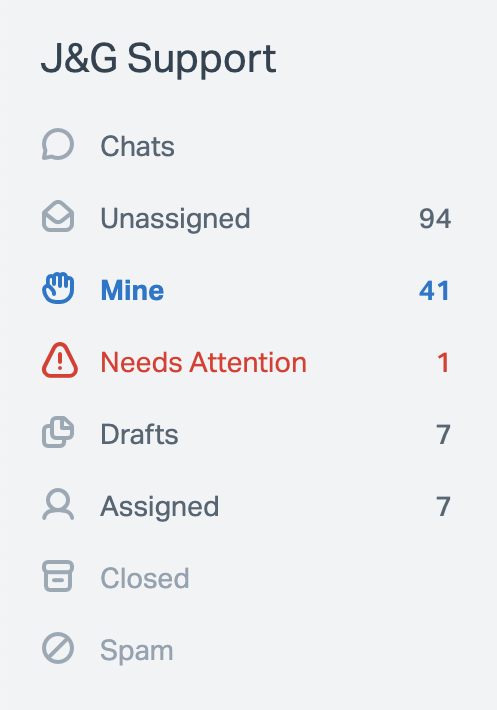
All mailboxes will always show the **Unassigned**, **Mine**, **Assigned**, **Closed**, and **Spam** folder views. The **Chats**, **Needs Attention**, and **Drafts** folder views only show in specific circumstances.
#### Chats

The Chats folder view appears above all other default folder views in the sidebar when you have a chat-enabled Beacon connected to the mailbox. Click into the folder view to find the chat interface — see [About the Chat Interface](https://5256150.hs-sites.com/knowledge/about-the-chat-interface) for more details on what you see there.
#### Unassigned

The Unassigned folder view shows you all conversations in the mailbox which are in Active or Pending status and are not assigned to any User or Team. The count you see in the sidebar is the number of conversations that are currently in Active status. The Unassigned folder view is always there, and is where all new conversations will show until a User or Workflow changes the status or assignment.
#### Mine

You will find any conversations in Active or Pending status that are currently assigned to you in the Mine folder view. The count in the sidebar is the number of Active status conversations.
#### Needs Attention

The Needs Attention folder only appears when one or more conversations need manual intervention.
*New* Conversations that show as Bounced status here mean that Help Scout was unable to hand off the email to your custom SMTP service or your recipient's email provider to send. Check out [What's New With Outbound Email Processing](https://docs.helpscout.com/article/1430-whats-new-with-outbound-email--processing) for more detail on this recent change!

Head over to [Prevent Duplicate Replies With Collision Detection](https://5256150.hs-sites.com/knowledge/prevent-duplicate-replies-with-collision-detection) for more information on how conversations can land here with a status of Paused.

#### Drafts

The Drafts folder view only shows when there are Active or Pending conversations containing a draft reply somewhere in the conversation. The count in the sidebar is the number of Active conversations. Drafts on conversations which have a status of Closed are not shown here.
#### Assigned

You will find all Active and Pending conversations that are assigned to any User other than you, or any Team in the Assigned folder view. The sidebar count is the number of Active conversations. The Assigned folder view also includes the **Assigned To** column. Click on **Assigned To** above the conversation list to filter this view to a specific User or Team.
#### Closed

All conversations that have a status of Closed will show in this folder view.
#### Spam

A conversation will land in the spam folder view if a User, Workflow, or the spam filter marks it as spam. Head over to [Manage Spam and Unwanted Email](https://5256150.hs-sites.com/knowledge/manage-spam-and-unwanted-email) for more details on the spam folder view and how to manage those conversations.
Did this answer your question? Thanks for the feedback There was a problem submitting your feedback. Please try again later.Yes No No results found
- [Docs](https://hsdemo.frodx.com/en/knowledge/docs#main-content)
- [Working with Docs](https://hsdemo.frodx.com/en/knowledge/docs#working-with-docs)
- [Formatting Content](https://hsdemo.frodx.com/en/knowledge/docs#formatting-content)
- [Managing Docs in Help Scout](https://hsdemo.frodx.com/en/knowledge/docs#managing-docs-in-help-scout)
- [Help Desk](https://hsdemo.frodx.com/en/knowledge/help-desk#main-content)
- [Mobile Apps](https://hsdemo.frodx.com/en/knowledge/help-desk#mobile-apps)
- [Getting Started](https://hsdemo.frodx.com/en/knowledge/help-desk#getting-started)
- [Productivity](https://hsdemo.frodx.com/en/knowledge/help-desk#productivity)
- [Mailbox and User Settings](https://hsdemo.frodx.com/en/knowledge/help-desk#mailbox-and-user-settings)
- [Working with Conversations](https://hsdemo.frodx.com/en/knowledge/help-desk#working-with-conversations)
- [Account Management](https://hsdemo.frodx.com/en/knowledge/help-desk#account-management)
- [Integrations](https://hsdemo.frodx.com/en/knowledge/help-desk#integrations)
- [Copying Email to Help Scout](https://hsdemo.frodx.com/en/knowledge/help-desk#copying-email-to-help-scout)
- [Reporting](https://hsdemo.frodx.com/en/knowledge/help-desk#reporting)
- [Sample Contact Page](https://hsdemo.frodx.com/sample-contact)
- [Sample About Page](https://hsdemo.frodx.com/sample-about)
- [Default HubSpot Blog](https://hsdemo.frodx.com/biglytics-blog)
[.png?width=550&height=171&name=frodx-logo-new%20(1).png "FrodX")](https://en.frodx.com/)
[mailto:email@email.com](mailto:email@email.com)
Copyright © 2026, GateHub Ltd