---
title: Connect Jira With Help Scout to Link Conversations and Issues
description: Jira helps you track and resolve bugs and other issues with powerful workflows, planning features, and comprehensive search — giving your team full control of the end-to-end development of your produc
---
[Skip to content](https://hsdemo.frodx.com/en/knowledge/connect-jira-with-help-scout-to-link-conversations-and-issues#main-content)
English
Show submenu for translations
.png?width=550&height=171&name=frodx-logo-new%20(1).png)
- [Sample Contact Page](https://hsdemo.frodx.com/sample-contact)
- [Sample About Page](https://hsdemo.frodx.com/sample-about)
- [Default HubSpot Blog](https://hsdemo.frodx.com/biglytics-blog)
Open main navigation
Close main navigation
- [Sample Contact Page](https://hsdemo.frodx.com/sample-contact)
- [Sample About Page](https://hsdemo.frodx.com/sample-about)
- [Default HubSpot Blog](https://hsdemo.frodx.com/biglytics-blog)
- English
Show submenu for translations
- Contact us
Contact us
How can we help you?
- There are no suggestions because the search field is empty.
1. [Help Center](https://hsdemo.frodx.com/en/knowledge)
2. [Help Desk](https://hsdemo.frodx.com/en/knowledge/help-desk)
3. [Integrations](https://hsdemo.frodx.com/en/knowledge/help-desk#integrations)
# Connect Jira With Help Scout to Link Conversations and Issues
[Jira](https://www.atlassian.com/software/jira) helps you track and resolve bugs and other issues with powerful workflows, planning features, and comprehensive search — giving your team full control of the end-to-end development of your products. Our integration allows you to link Jira issues with conversations right from Help Scout, and you can quickly see previously linked Jira issues in Help Scout, as well as seeing the linked conversations in Jira.
The Jira integration is included with the Plus and Pro plans, and is available as a part of the Premium Integrations add-on for Standard plans.
#### In this article
- [Overview](https://hsdemo.frodx.com/en/knowledge/connect-jira-with-help-scout-to-link-conversations-and-issues#overview)
- [Activation Instructions](https://hsdemo.frodx.com/en/knowledge/connect-jira-with-help-scout-to-link-conversations-and-issues#install)
- [How it Works](https://hsdemo.frodx.com/en/knowledge/connect-jira-with-help-scout-to-link-conversations-and-issues#how)
### Overview
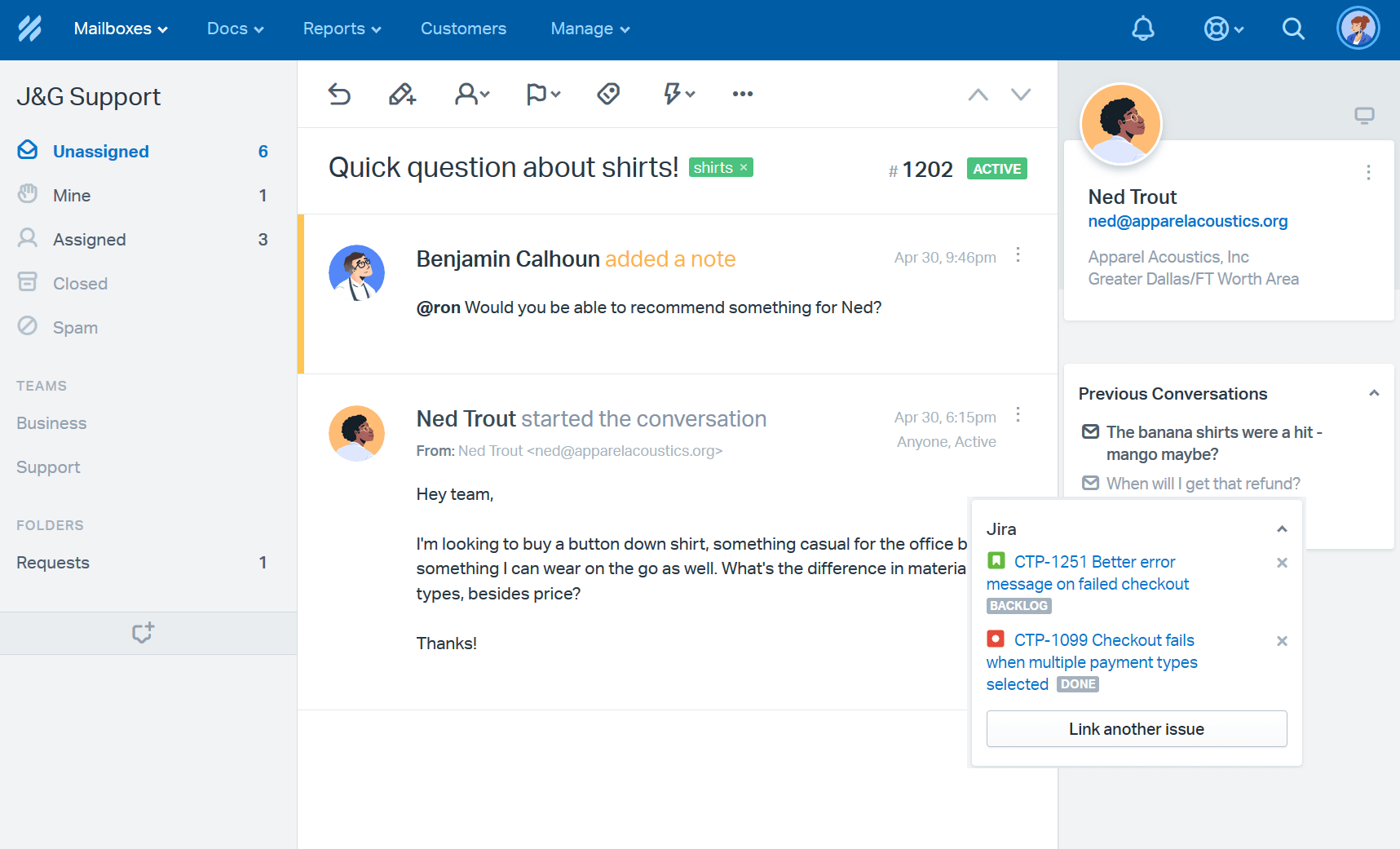
The Help Scout Jira integration helps keep your support team in touch with product development and bug reporting by creating easy access to Jira issues right from the conversation sidebar in Help Scout.
### Activation Instructions
**Note:** You'll need a Jira administrator to complete the installation.
If you're using Jira Cloud, you must authenticate the integration using your Jira administrator username and API token. You can create an API token following [these steps](https://confluence.atlassian.com/cloud/api-tokens-938839638.html) from Jira.
Jira Server (on-premise) users can authenticate using your Jira username and password. If your Jira Server installation is behind a firewall, give us a shout to request the IP addresses you'll need to allow through.
**Manage \> Apps** 
If your Help Scout account is on a Standard plan, any user with the *Manage Account: Billing and plan changes* permission can add the Premium Integrations add-on to have access to this app — just head to **Your Plan \> Add-ons** to enable it. If you do not see that option in Add-ons, please reach out to our team to get that added!
Click on **Install App**, then enter your **Jira Base URL** (e.g. yourcompany.atlassian.net), your **Jira Username** (must be a Jira administrator), and the **Jira API token**. The Jira account you use to authenticate here must have permissions to create and edit issues and modify the reporter for each project.
Note: If you change the **Jira Base URL** at a later time, you will lose any links to conversations that were set prior to that change.
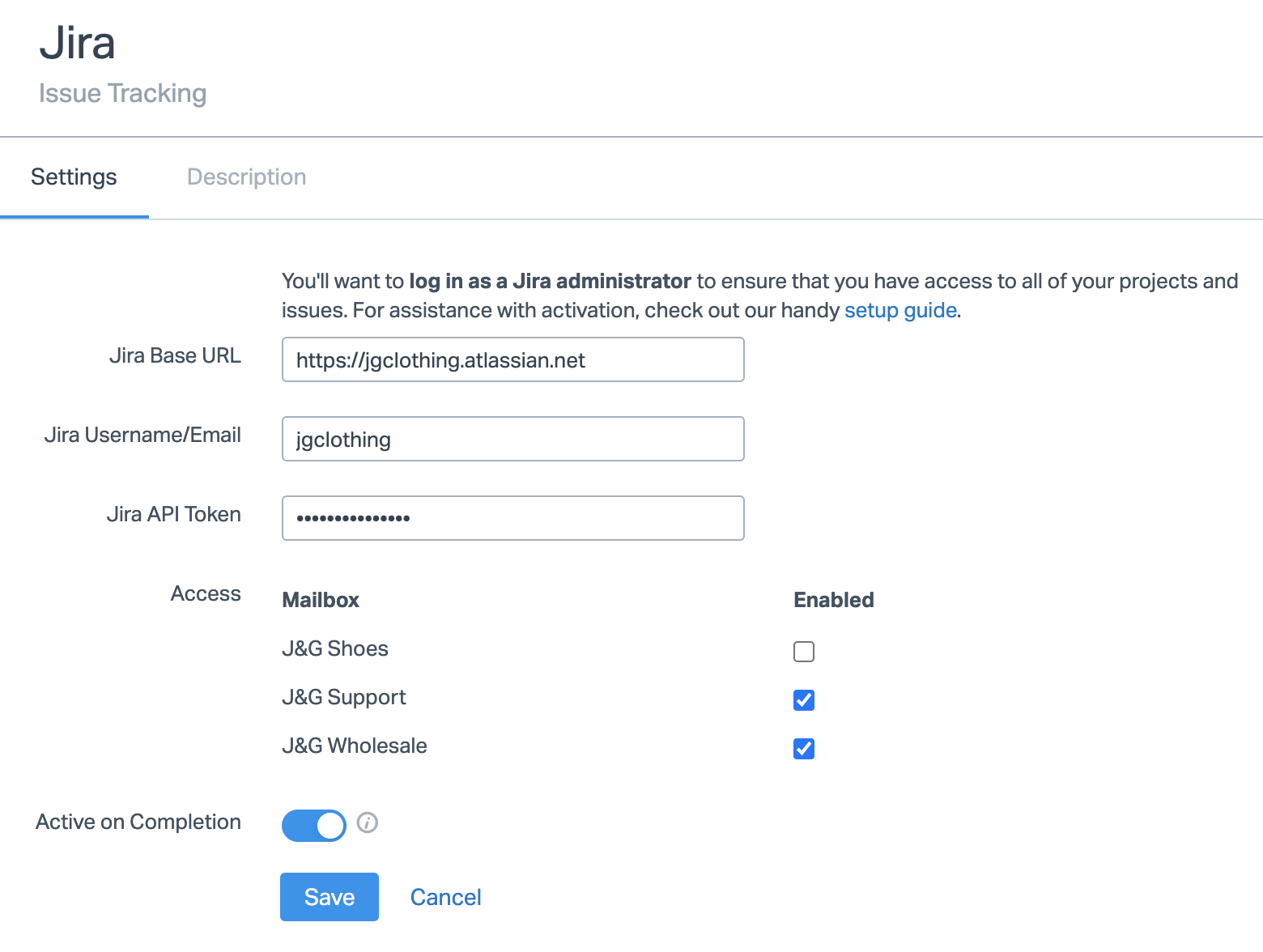
Toggle **Active on Completion** to if you want the Help Scout conversations to be re-opened when a Jira issue is set as done. Done in Jira means the issue status has been set to:
- A status with the name *Done*
- Any status that has a status category of *Done*. This includes the Resolved status out of the box, but can also include any custom statuses with the Done status category as well
The Jira app sets the conversation status to Active and adds a note to the conversation that it was set to active.

If you choose to not use Active on Completion, Jira will still add a note to a conversation that was linked to an issue when set to a Done status.

Use search or workflows to find conversations with these notes. More on those features:
[Search in Help Scout](https://5256150.hs-sites.com/knowledge/search-in-help-scout)
[Get Started With Workflows](https://5256150.hs-sites.com/knowledge/get-started-with-workflows)
#### Pro Tip: Quickly Follow Up With Customers
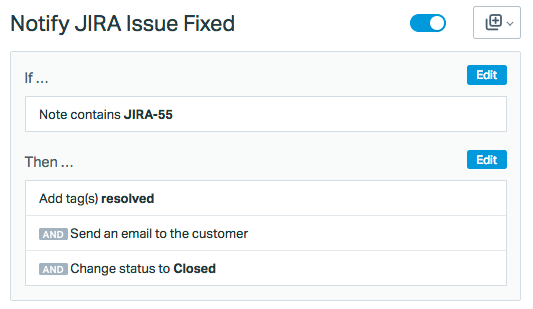
Create a workflow to quickly follow up with customers using the notes that the Jira app leaves. Look for the Jira issue number (e.g. JIRA-55) in the conversation notes, then automatically email your customers with a follow-up to let them know you've implemented their request or resolved the issue.
### How it Works
After you install the app, you will see Jira appear in the sidebar on each of your conversations.

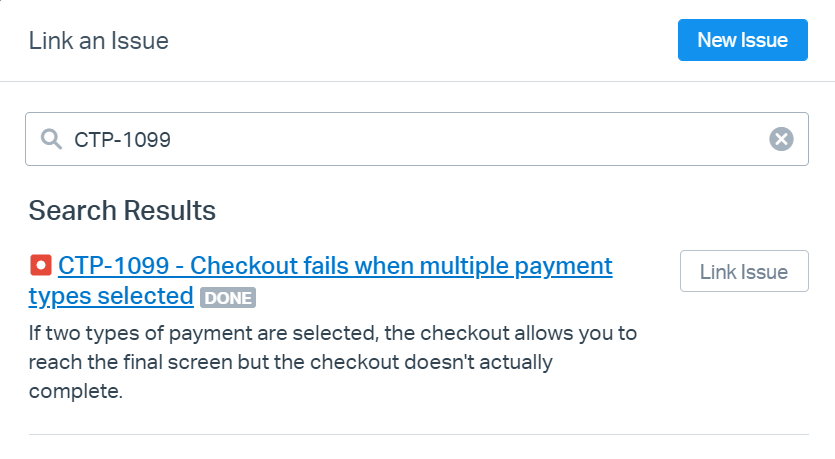
Click on **Link an issue** to search for projects and issues that exist in Jira. Type in any relevant text and the results will populate automatically. Click on **Link Issue** to link it with the conversation.
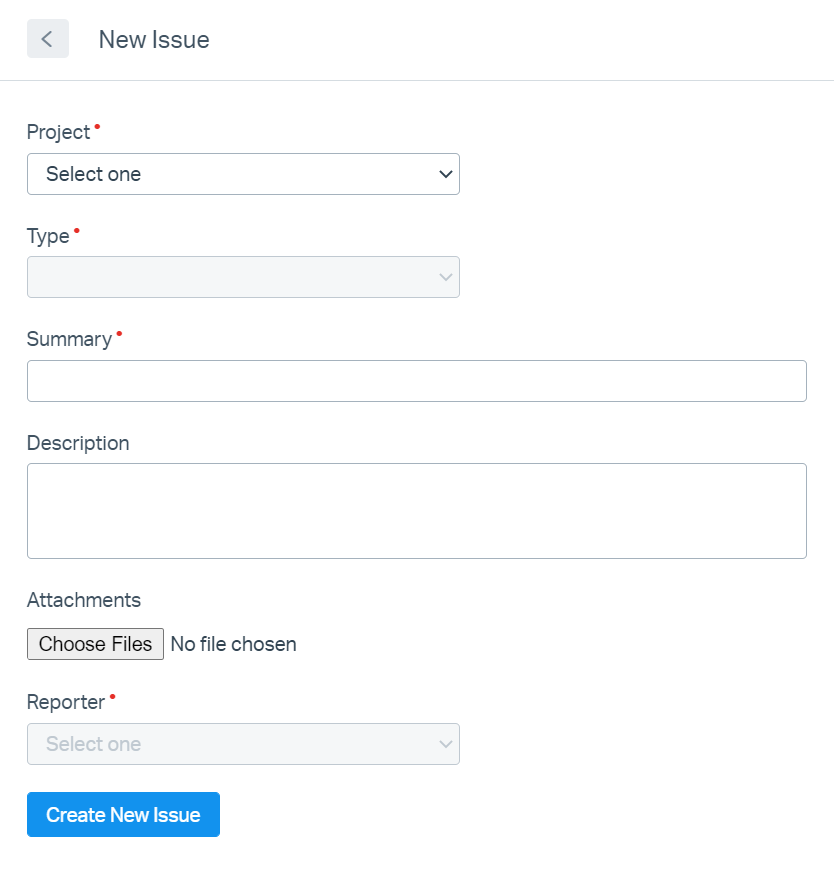
Or click **New Issue** to create a Jira issue right from Help Scout. The new issue form will display any fields that are set as required in Jira for the project you select.
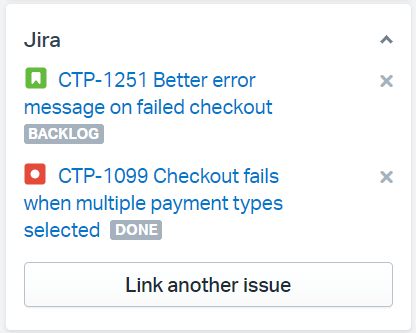
Your new issue will show linked in the sidebar.
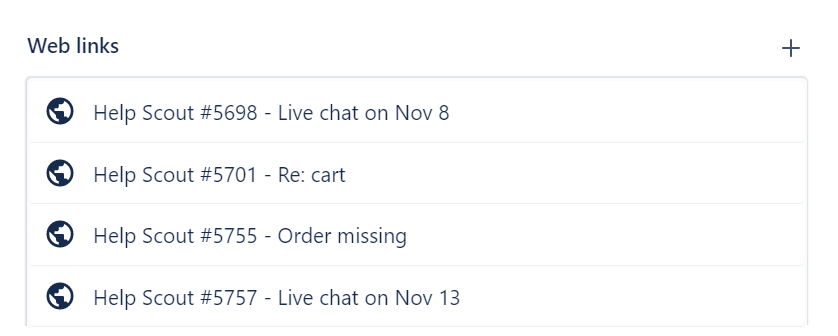
Jira issues will show Help Scout conversations as web links. Help Scout Users can click on the links in Jira to open the conversation.
**Note:** Issues created from the Jira app will follow the time zone set in your [Help Scout User profile](https://5256150.hs-sites.com/knowledge/manage-your-user-profile).
Did this answer your question? Thanks for the feedback There was a problem submitting your feedback. Please try again later.Yes No No results found
- [Docs](https://hsdemo.frodx.com/en/knowledge/docs#main-content)
- [Working with Docs](https://hsdemo.frodx.com/en/knowledge/docs#working-with-docs)
- [Formatting Content](https://hsdemo.frodx.com/en/knowledge/docs#formatting-content)
- [Managing Docs in Help Scout](https://hsdemo.frodx.com/en/knowledge/docs#managing-docs-in-help-scout)
- [Help Desk](https://hsdemo.frodx.com/en/knowledge/help-desk#main-content)
- [Mobile Apps](https://hsdemo.frodx.com/en/knowledge/help-desk#mobile-apps)
- [Getting Started](https://hsdemo.frodx.com/en/knowledge/help-desk#getting-started)
- [Productivity](https://hsdemo.frodx.com/en/knowledge/help-desk#productivity)
- [Mailbox and User Settings](https://hsdemo.frodx.com/en/knowledge/help-desk#mailbox-and-user-settings)
- [Working with Conversations](https://hsdemo.frodx.com/en/knowledge/help-desk#working-with-conversations)
- [Account Management](https://hsdemo.frodx.com/en/knowledge/help-desk#account-management)
- [Integrations](https://hsdemo.frodx.com/en/knowledge/help-desk#integrations)
- [Copying Email to Help Scout](https://hsdemo.frodx.com/en/knowledge/help-desk#copying-email-to-help-scout)
- [Reporting](https://hsdemo.frodx.com/en/knowledge/help-desk#reporting)
- [Sample Contact Page](https://hsdemo.frodx.com/sample-contact)
- [Sample About Page](https://hsdemo.frodx.com/sample-about)
- [Default HubSpot Blog](https://hsdemo.frodx.com/biglytics-blog)
[.png?width=550&height=171&name=frodx-logo-new%20(1).png "FrodX")](https://en.frodx.com/)
[mailto:email@email.com](mailto:email@email.com)
Copyright © 2026, GateHub Ltd