---
title: Connect Salesforce With Help Scout
description: "The Salesforce integration keeps teams working in Help Scout and Salesforce connected about customer communications across systems. There are two sides to the integration: the Help Scout app (pulls in"
---
[Skip to content](https://hsdemo.frodx.com/en/knowledge/connect-salesforce-with-help-scout#main-content)
English
Show submenu for translations
.png?width=550&height=171&name=frodx-logo-new%20(1).png)
- [Sample Contact Page](https://hsdemo.frodx.com/sample-contact)
- [Sample About Page](https://hsdemo.frodx.com/sample-about)
- [Default HubSpot Blog](https://hsdemo.frodx.com/biglytics-blog)
Open main navigation
Close main navigation
- [Sample Contact Page](https://hsdemo.frodx.com/sample-contact)
- [Sample About Page](https://hsdemo.frodx.com/sample-about)
- [Default HubSpot Blog](https://hsdemo.frodx.com/biglytics-blog)
- English
Show submenu for translations
- Contact us
Contact us
How can we help you?
- There are no suggestions because the search field is empty.
1. [Help Center](https://hsdemo.frodx.com/en/knowledge)
2. [Help Desk](https://hsdemo.frodx.com/en/knowledge/help-desk)
3. [Integrations](https://hsdemo.frodx.com/en/knowledge/help-desk#integrations)
# Connect Salesforce With Help Scout
The Salesforce integration keeps teams working in Help Scout and Salesforce connected about customer communications across systems. There are two sides to the integration: the Help Scout app (pulls in data from Salesforce) and the Salesforce app (pulls in data from Help Scout to show in a Visualforce component).
You can use the Help Scout app without installing the Salesforce app, but you must install the Help Scout app to be able to use the Salesforce Visualforce components on the Salesforce side.
The Salesforce integration is included with the Plus and Pro plans, and is available as a part of the Premium Integrations add-on for Standard plans.
#### In this article
- [Features](https://hsdemo.frodx.com/en/knowledge/connect-salesforce-with-help-scout#features)
- [Requirements](https://hsdemo.frodx.com/en/knowledge/connect-salesforce-with-help-scout#requirements)
- [Install the Help Scout App](https://hsdemo.frodx.com/en/knowledge/connect-salesforce-with-help-scout#installation)
- [Install the Salesforce App](https://hsdemo.frodx.com/en/knowledge/connect-salesforce-with-help-scout#installation-sf)
- [Remove the Apps](https://hsdemo.frodx.com/en/knowledge/connect-salesforce-with-help-scout#uninstall)
### Features
#### Help Scout App
The Help Scout app is customizable in Help Scout after installation at Manage \> Apps \> [Salesforce](https://secure.helpscout.net/apps/salesforce/).
- One-way customer sync from Salesforce to Help Scout: When you select **Sync Profile** in the integration settings, Help Scout will perform a one-way sync of customer profile data from Salesforce into Help Scout based on customer email address.
- Pull data from Salesforce: The Salesforce section in the sidebar on a conversation can display lots of data from Salesforce, which is customizable.
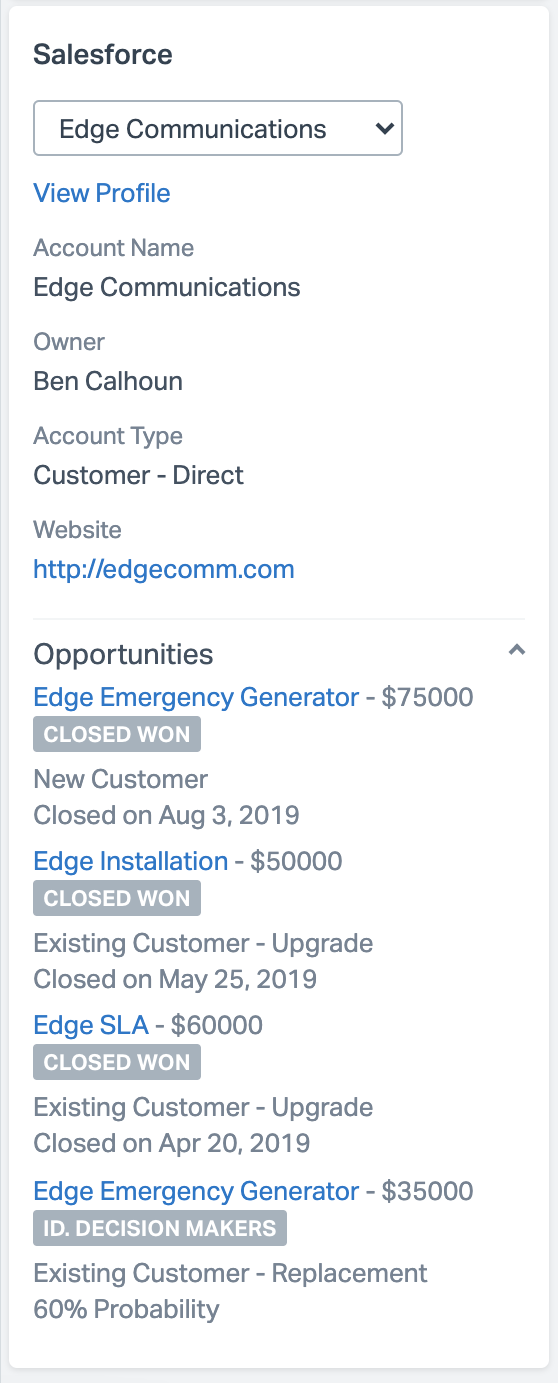
- Three types of records will show — Account, Contact and Lead records. Help Scout will lookup all records associated with the customer's email address and add them to the sidebar. You'll see a dropdown and can select the record you want to view in the sidebar if more than one record is found.
- Fields (default and custom ones) associated with the record will display according to your settings.
- You'll be able to view up to five types of data, depending on the record type that's selected. These are:
- Open Activities (includes tasks)
- Activity History (includes tasks)
- Opportunities
- Cases
- Orders
The screenshot below demonstrates what the sidebar view might look like — remember what fields display is up to you.
**Conversation Activity**
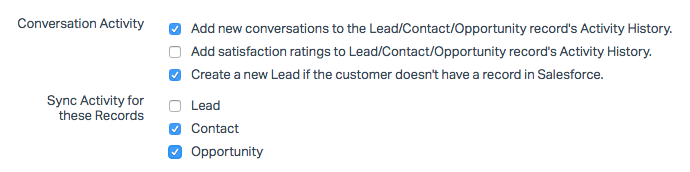
The Help Scout app can also write two events to Salesforce Lead, Contact, or Opportunity activity history: a new conversation or a new rating. Enable these events at Manage \> Apps \> [Salesforce](https://secure.helpscout.net/apps/salesforce/) in Help Scout.
#### Salesforce App
You'll be able to view Help Scout Conversations on four types of records in Salesforce: Accounts, Contacts, Leads, and Opportunities. The conversation displays in a Visualforce component that you'll add to the record types you choose. Note that this does not *write* data to those records, but allows you to see the conversation history direct from Help Scout.
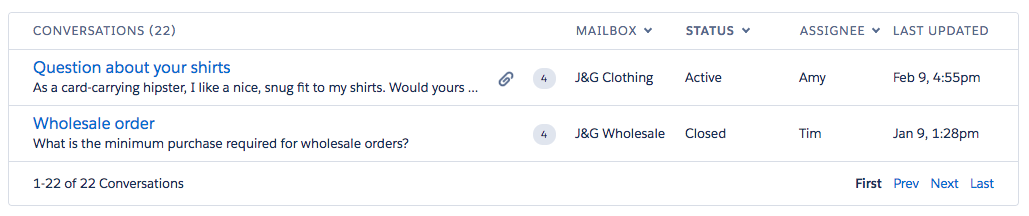
The Visualforce component will perform a lookup of all email addresses associated with the record (Account, Contact, Lead, and/or Opportunity) and load a view of relevant conversation history whenever you open a record with the component.
### Requirements
- Help Scout Plus or Pro plan, or a Standard plan with the Premium Integrations add-on.
- Salesforce Sales Cloud Professional *with the Web Services API add-on,* Enterprise or Unlimited.
### Install the Help Scout App
This section outlines how to set up the Help Scout app to show Salesforce data in the sidebar in Help Scout conversations, as well as allowing Help Scout to sync profile data and send activities to Salesforce.
If your Help Scout account is on a Standard plan, any user with the *Manage Account: Billing and plan changes* permission can add the Premium Integrations add-on to have access to this app — just head to **Your Plan \> Add-ons** to enable it. If you do not see that option in Add-ons, please reach out to our team to get that added!
Head to **Manage \> Apps \> [Salesforce](https://secure.helpscout.net/apps/salesforce/)** in Help Scout. Click **Install App**.
Log in to Salesforce if you're prompted to, and click **Allow** to give Help Scout access to Salesforce.

Select which Mailboxes to include and what data to display in the Help Scout customer sidebar back in the Help Scout app at **Manage \> Apps \> [Salesforce](https://secure.helpscout.net/apps/salesforce/)**. You can come back here any time to edit these settings later.
Under Conversation Activity, you have the option of writing new conversations and/or new satisfaction ratings to specific Salesforce records (Leads, Contacts, and/or Opportunities), and can choose whether or not to create a new Lead if the current contact/account does not yet exist.
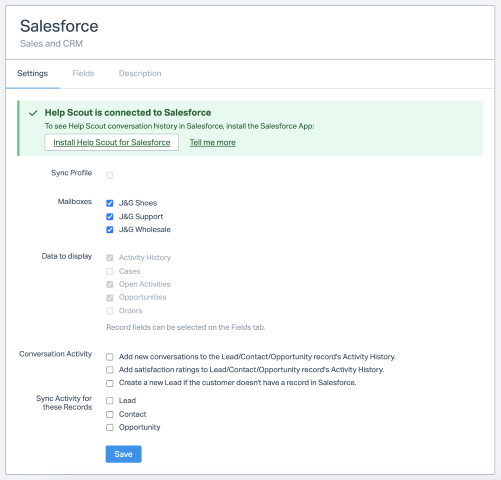
Select the fields to show in the Help Scout sidebar on the **Fields** tab. The integration will pull in the standard Salesforce fields as well your organization's custom fields.
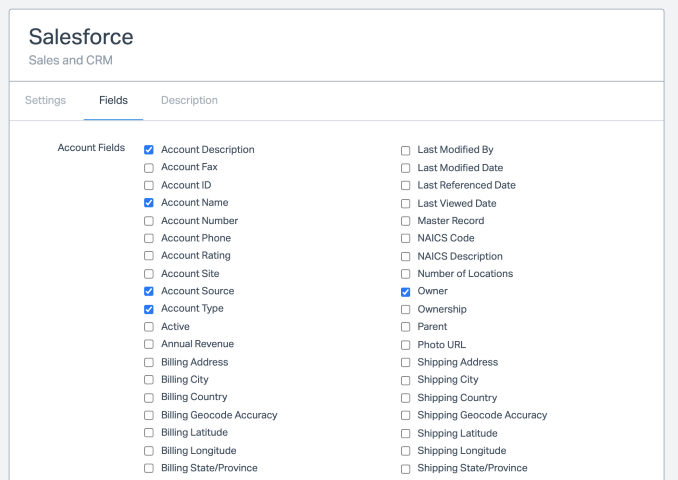
That's it! Help Scout will now display Salesforce data for your customers directly in the conversation sidebar, and will send activity and contact data based on your selections to Salesforce.
If you'd like to set up the Salesforce app to also show Help Scout conversations in Salesforce as a Visualforce object, head to the next section.
### Install the Salesforce App
In addition to writing new conversations and ratings to Salesforce through the Help Scout app, you can also sync full conversation data to each record in Salesforce by installing the Salesforce app. First, you'll need to install the latest Salesforce package in your company's account.
Head to **Manage \> Apps \> Salesforce** if you're not already on that page. In the green box, click the link to **Install Help Scout for Salesforce**. This will open a new tab in Salesforce.

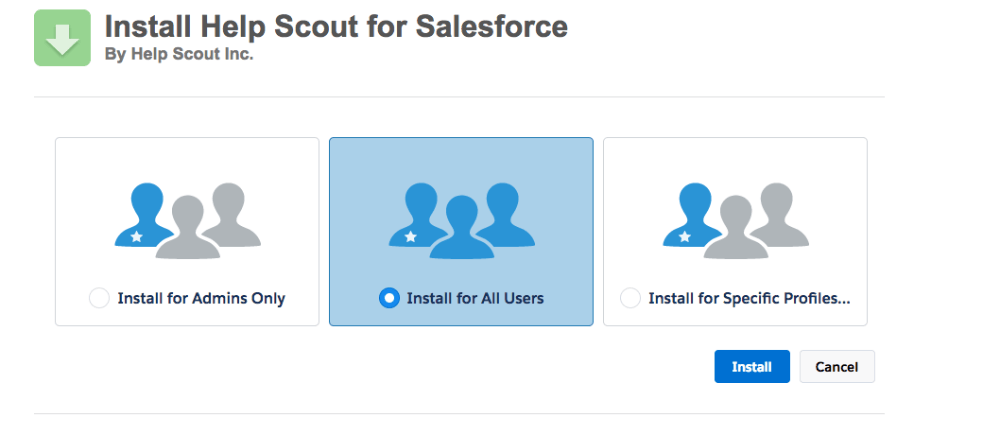
Choose **Install for All Users**.
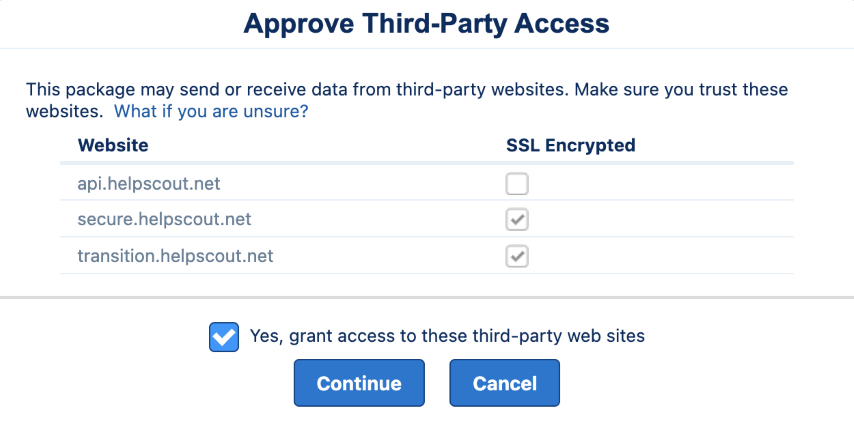
Choose **Yes, grant access to these third-party web sites** and **Continue**.
You'll see a notification when the install is complete, click **Done** and skip to the [second step for Salesforce Classic](https://hsdemo.frodx.com/en/knowledge/connect-salesforce-with-help-scout#classic), or skip to the [second step for Salesforce Lightning](https://hsdemo.frodx.com/en/knowledge/connect-salesforce-with-help-scout#lightning). (The steps after that are the same.)
#### In Salesforce Classic:
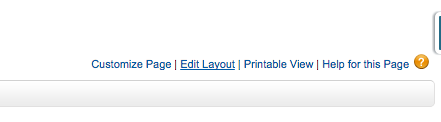
In Salesforce, open an existing Account, Contact, Lead or Opportunity record and click the **Edit Layout** link.
#### In Salesforce Lightning:
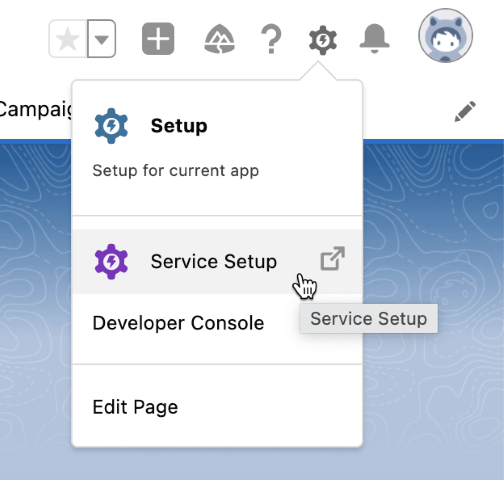
- Click the gear icon and choose **Service Setup**.
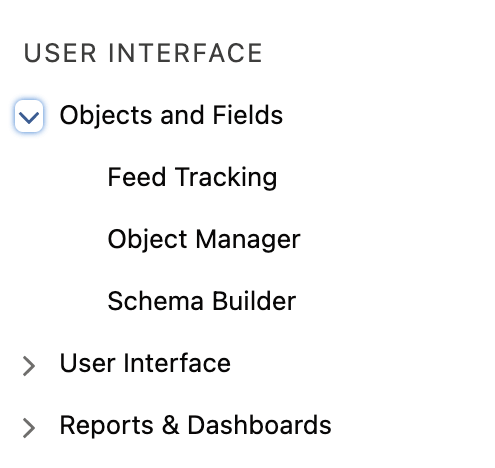
- A new window will open with a left navigation menu. Under the group *User Interface*, expand **Objects and Fields**, then click **Object Manager**.
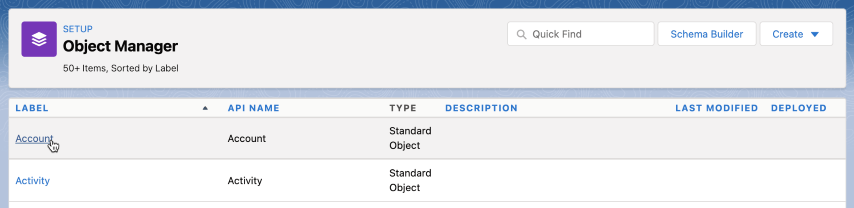
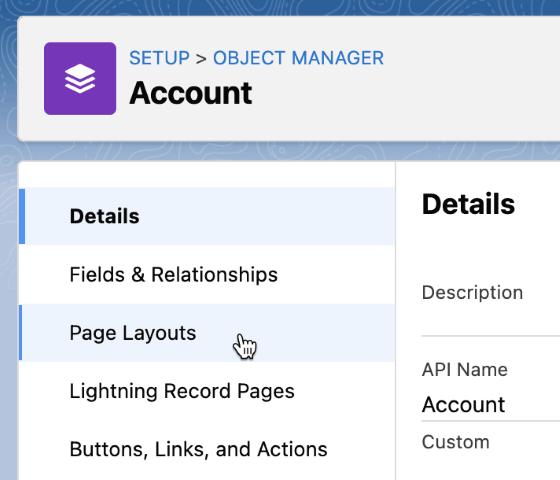
- Select a record type to add the object to. You can choose from **Account**, **Contact**, **Lead** or **Opportunity**. You'll need to add this to each one of those record types where you wish to see Help Scout conversations.
- Click on **Page Layouts**.
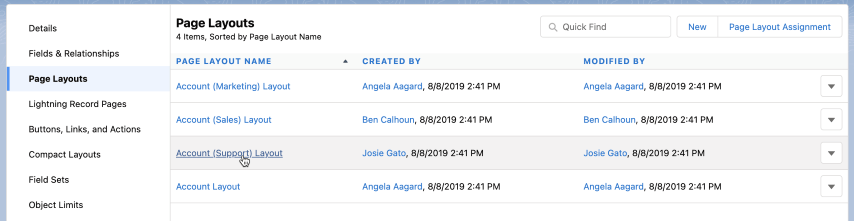
- Select the page layout you would like to add the component to. Note that the layouts you see on this screen will be the ones on your own Salesforce account, so will not show the same options the screenshots here do.
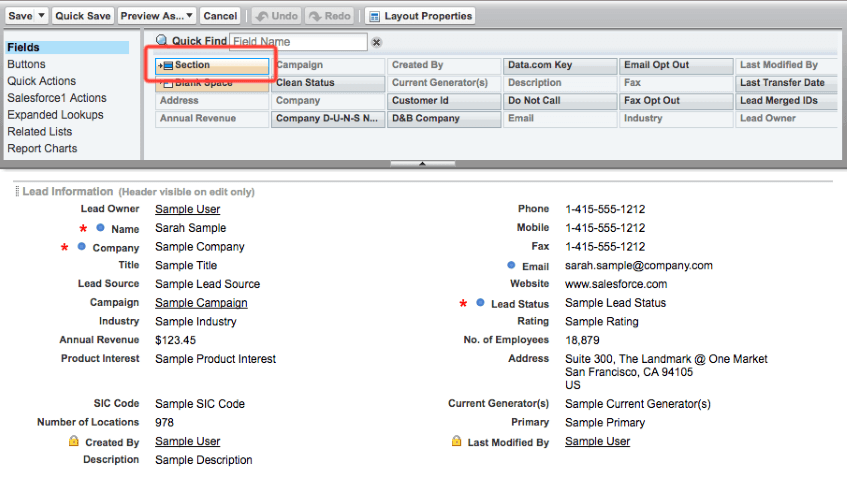
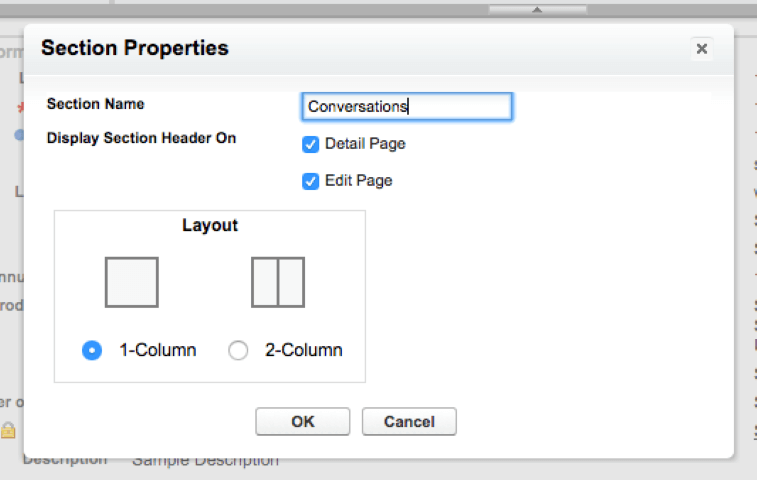
Find the **Section** option just under the Quick Find bar. Click and drag the **Section** option and drop it to the location on your record where you'd your new Visualforce component to appear. Name the section **Conversations** (or whatever you prefer), select **1-Column** in the Layout section, then click the **OK** button.
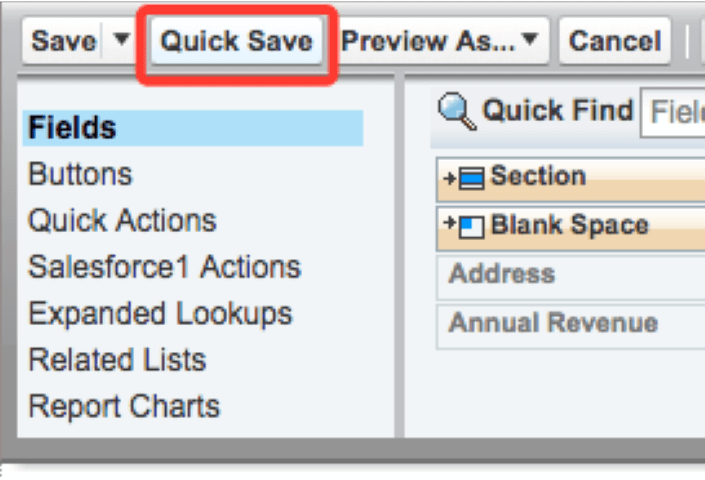
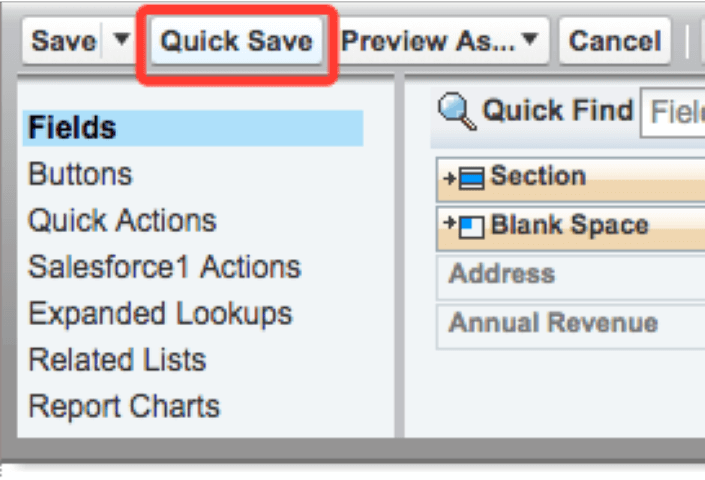
In the top gray box, click the **Quick Save** button.
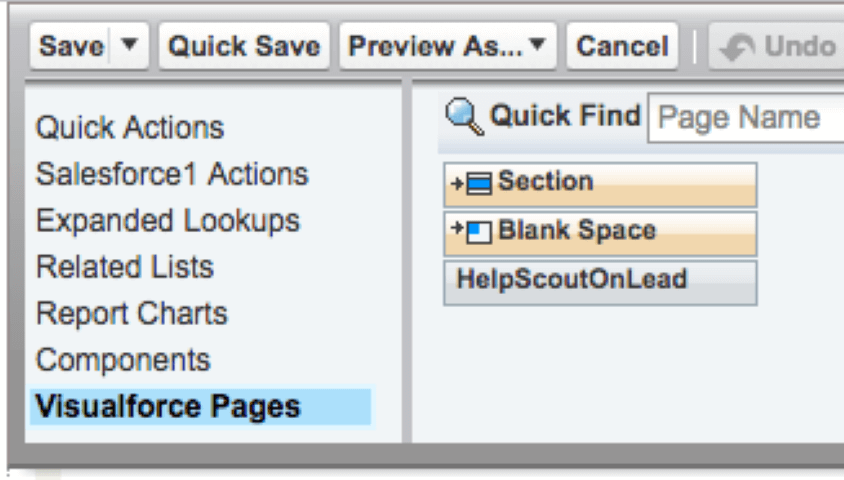
Scroll to the bottom and select **Visualforce Pages** in the left navigation section. Choose **HelpScoutOnBLANK** (BLANK being the record type you are updating) component from the options to the right. Drag and drop this component into the **Conversations** section you created in Step 3.
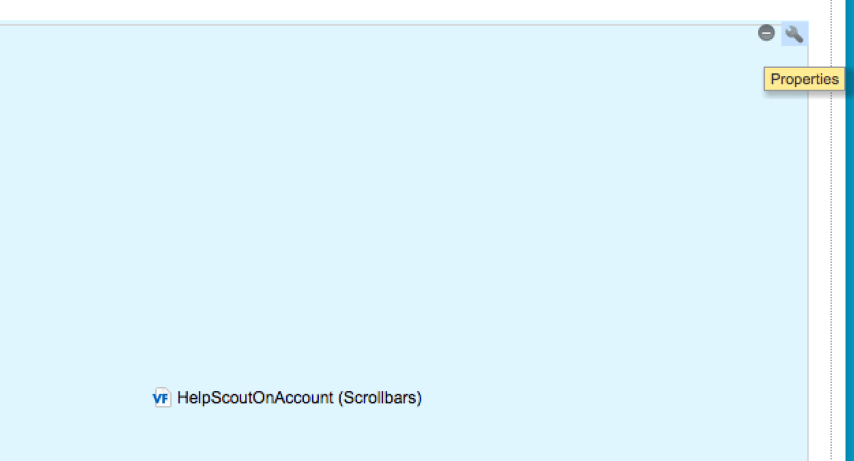
Scroll down to the Visualforce component you just created and click the wrench icon to edit the component's properties.
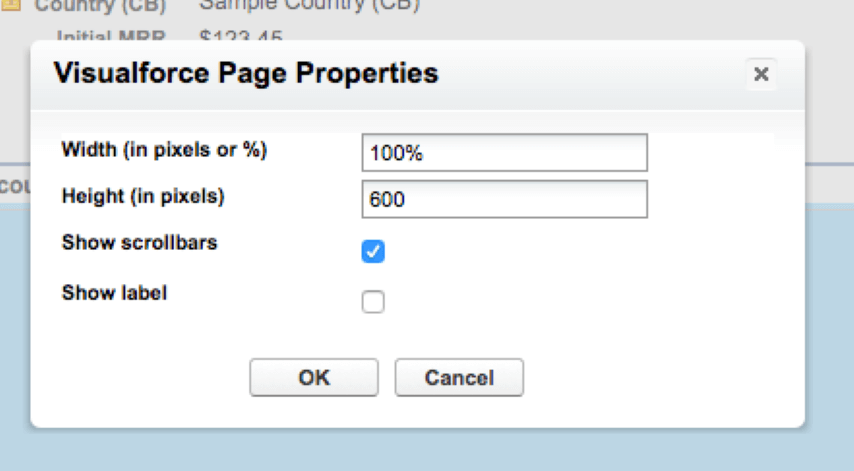
Set the width at 100%, and height at 600px. Check **Show scrollbars**.
Click the **Quick Save** button again.
Repeat steps 2-8 for the other types of records you'd like show the Help Scout conversation history.
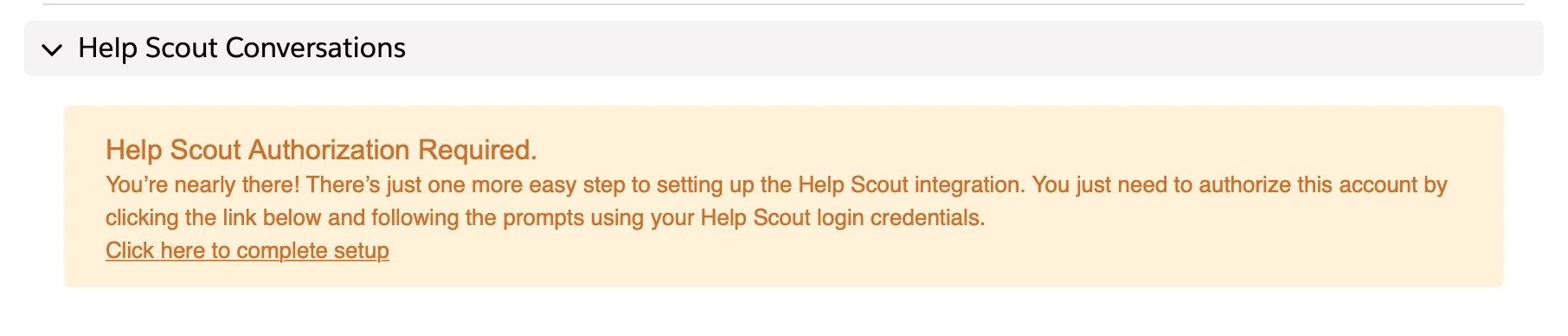
Head to any record ( **Accounts**, **Contacts**, **Leads** or **Opportunities**) where you've added the Visualforce component, then open the **Details** tab. Scroll to the section you just added, and click **Click here to complete setup** to finish. Make sure that the Help Scout User you authenticate as here has access to the Mailboxes in Help Scout that contain conversations you want to show in Salesforce.
### Remove the Apps
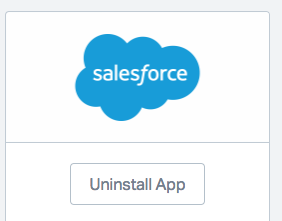
To remove the Help Scout app, head to **Manage \> Apps \> [Salesforce](https://secure.helpscout.net/apps/salesforce/)** and click **Uninstall App**.
To remove the Salesforce app, you'll need to remove the Visualforce component from each of the record types you added it to (Account, Contact, Lead, and/or Opportunity). You'll need to click the Edit Layout link in Salesforce Classic, or head back into the Object Manager in Salesforce Lightning. See [Step 2](https://hsdemo.frodx.com/en/knowledge/connect-salesforce-with-help-scout#step2) in the install process for help getting back to those settings.
Remove the Help Scout Visualforce component by clicking the **delete** button:

Follow the same process and remove the Visualforce components for all other record types.
In Salesforce Classic, click on **Setup**, then **Installed Packages**. Click **Uninstall** next to the Help Scout for Salesforce app.
In Salesforce Lightning, click **Setup** (*not* Service Setup, but just Setup) then under *Platform Tools* click **Apps \> Packaging \> Installed Packages**. Click **Uninstall** next to the Help Scout for Salesforce app.

Scroll to the bottom of the next page to find the options for uninstall. Choose whether you want to save a copy of the package data for 48 hours or delete it immediately, then check **Yes, I want to uninstall this package...** and click **Uninstall**.

Note: Salesforce will not let you uninstall the package if it's still in use on any layouts. It will show you an error that indicates where the Visualforce object is in use. Remove those and come back to these steps to complete the uninstall.
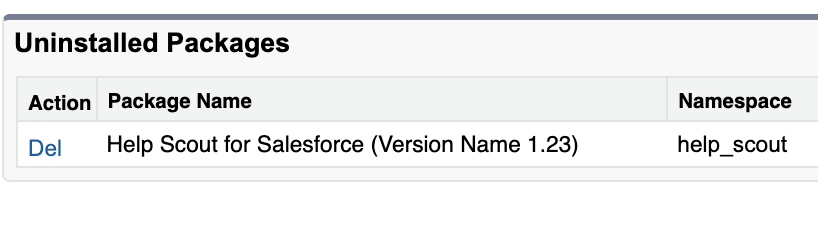
You'll see the package appear in the *Uninstalled Packages* section. Delete the uninstalled package and you're all set.
 Did this answer your question? Thanks for the feedback There was a problem submitting your feedback. Please try again later.Yes No No results found
- [Docs](https://hsdemo.frodx.com/en/knowledge/docs#main-content)
- [Working with Docs](https://hsdemo.frodx.com/en/knowledge/docs#working-with-docs)
- [Formatting Content](https://hsdemo.frodx.com/en/knowledge/docs#formatting-content)
- [Managing Docs in Help Scout](https://hsdemo.frodx.com/en/knowledge/docs#managing-docs-in-help-scout)
- [Help Desk](https://hsdemo.frodx.com/en/knowledge/help-desk#main-content)
- [Mobile Apps](https://hsdemo.frodx.com/en/knowledge/help-desk#mobile-apps)
- [Getting Started](https://hsdemo.frodx.com/en/knowledge/help-desk#getting-started)
- [Productivity](https://hsdemo.frodx.com/en/knowledge/help-desk#productivity)
- [Mailbox and User Settings](https://hsdemo.frodx.com/en/knowledge/help-desk#mailbox-and-user-settings)
- [Working with Conversations](https://hsdemo.frodx.com/en/knowledge/help-desk#working-with-conversations)
- [Account Management](https://hsdemo.frodx.com/en/knowledge/help-desk#account-management)
- [Integrations](https://hsdemo.frodx.com/en/knowledge/help-desk#integrations)
- [Copying Email to Help Scout](https://hsdemo.frodx.com/en/knowledge/help-desk#copying-email-to-help-scout)
- [Reporting](https://hsdemo.frodx.com/en/knowledge/help-desk#reporting)
- [Sample Contact Page](https://hsdemo.frodx.com/sample-contact)
- [Sample About Page](https://hsdemo.frodx.com/sample-about)
- [Default HubSpot Blog](https://hsdemo.frodx.com/biglytics-blog)
[.png?width=550&height=171&name=frodx-logo-new%20(1).png "FrodX")](https://en.frodx.com/)
[mailto:email@email.com](mailto:email@email.com)
Copyright © 2026, GateHub Ltd