---
title: Connect WooCommerce and Help Scout
description: WooCommerce is a popular and comprehensive plugin for WordPress that allows you to get fully-functioning eCommerce sites up and running within minutes. Manage payments, shipping, inventory, store perf
---
[Skip to content](https://hsdemo.frodx.com/en/knowledge/connect-woocommerce-and-help-scout-1#main-content)
English
Show submenu for translations
.png?width=550&height=171&name=frodx-logo-new%20(1).png)
- [Sample Contact Page](https://hsdemo.frodx.com/sample-contact)
- [Sample About Page](https://hsdemo.frodx.com/sample-about)
- [Default HubSpot Blog](https://hsdemo.frodx.com/biglytics-blog)
Open main navigation
Close main navigation
- [Sample Contact Page](https://hsdemo.frodx.com/sample-contact)
- [Sample About Page](https://hsdemo.frodx.com/sample-about)
- [Default HubSpot Blog](https://hsdemo.frodx.com/biglytics-blog)
- English
Show submenu for translations
- Contact us
Contact us
How can we help you?
- There are no suggestions because the search field is empty.
1. [Help Center](https://hsdemo.frodx.com/en/knowledge)
2. [Help Desk](https://hsdemo.frodx.com/en/knowledge/help-desk)
3. [Integrations](https://hsdemo.frodx.com/en/knowledge/help-desk#integrations)
# Connect WooCommerce and Help Scout
WooCommerce is a popular and comprehensive plugin for WordPress that allows you to get fully-functioning eCommerce sites up and running within minutes. Manage payments, shipping, inventory, store performance & taxes all from your WordPress backend.
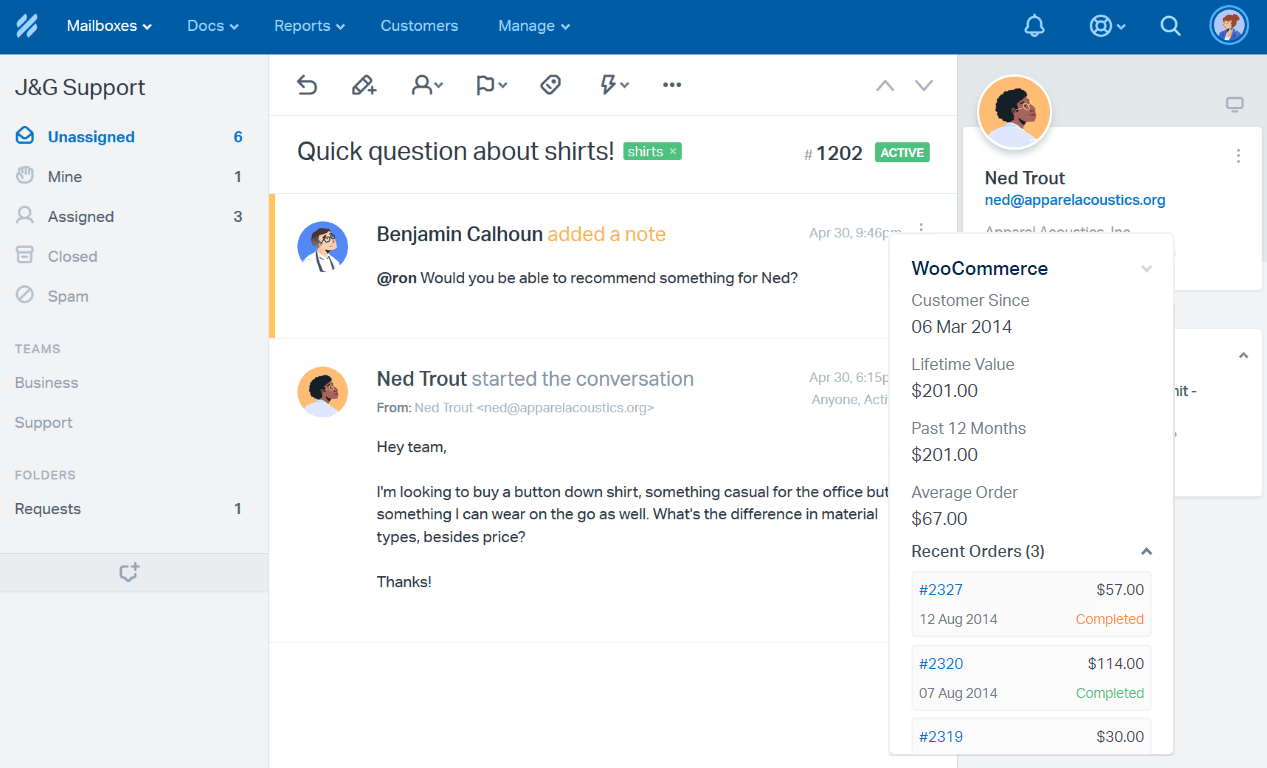
Help Scout's App for WooCommerce brings the customer data you need directly into the customer sidebar. When you receive an email from a customer, this app will import contact information, pull in the customer's key metrics (lifetime value, annual value and average order value) and display up to 10 recent orders. You can access order details or the customer's WooCommerce profile in a single click. Here's a quick snapshot of how it will appear in Help Scout:
First things first! To connect WooCommerce with Help Scout, you'll first need to purchase and install the [WooCommerce Help Scout plugin](https://woocommerce.com/products/woocommerce-help-scout/) from WooCommerce to your WordPress site. The plugin is required for the Help Scout sidebar app as well as the WooCommerce to Help Scout connection.
The instructions to set up the plugin to connect to Help Scout can be found in their documentation at [WooCommerce Help Scout](https://docs.woocommerce.com/document/woocommerce-help-scout/). Make sure to follow the steps to [enable the API in WooCommerce](https://docs.woocommerce.com/document/woocommerce-help-scout/#hmc4moeh59usa).
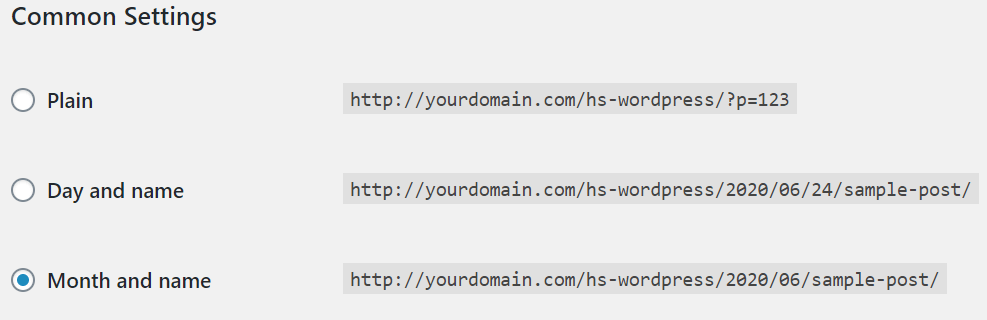
In your main WordPress dashboard, head to **Settings \> Permalinks**. Choose any of the Common Settings structures here except Plain. Permalinks set to Plain here will not work.
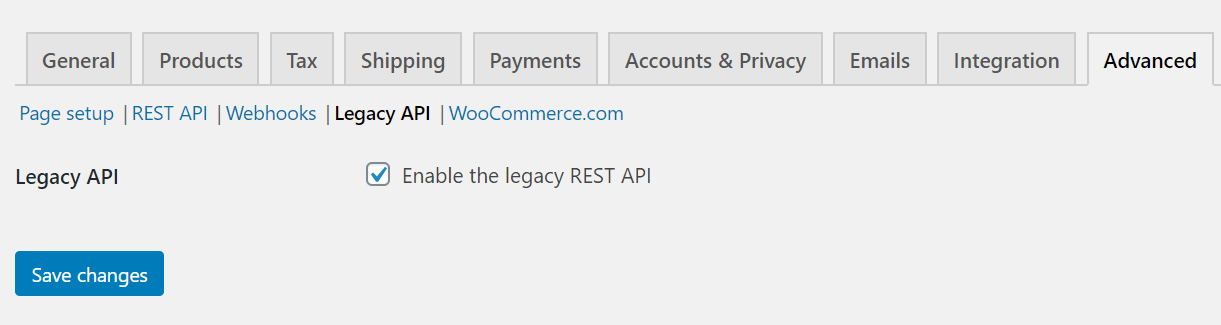
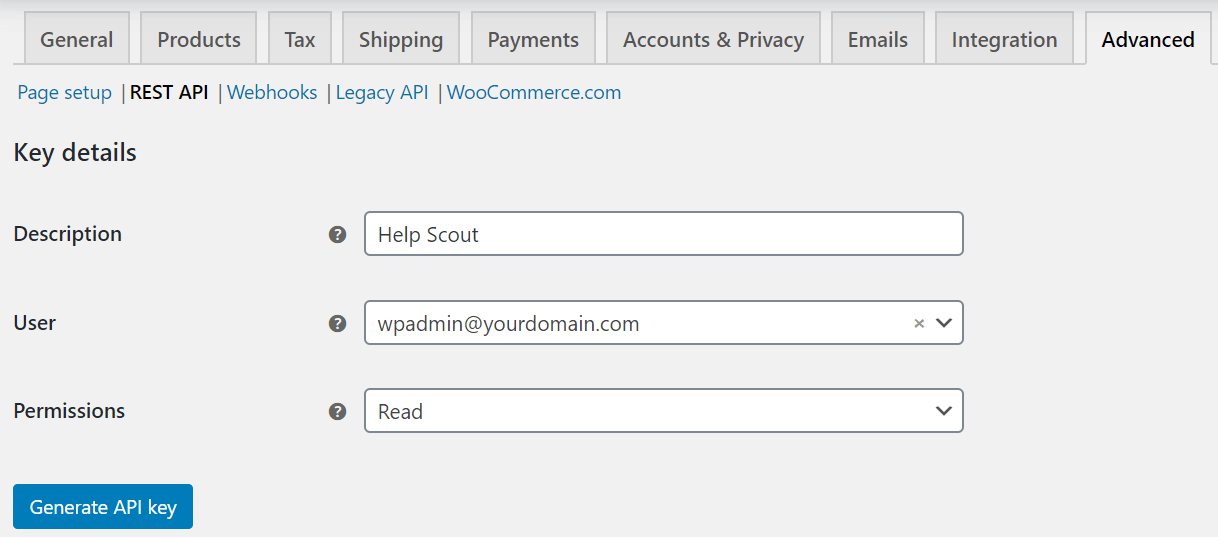
Next head to **WooCommerce \> Settings \> Advanced \> Legacy API** and and tick the **Enable the legacy REST API** checkbox. Click the **REST API** tab, then click on **Add Key***.* Enter in all of the key details, and hit the blue **Generate API key**button.
**Note:** Keep that screen open, or copy and paste your Consumer Key and Secret from WooCommerce into a temporary file - once you leave this screen you will not be able to see the key again!
You're almost done! Back in Help Scout, click **Manage \> Apps** and find WooCommerce. Click **Install App**, then paste in the Consumer Key and Consumer secret from WooCommerce. The *Store URL* is the web address used to reach your store, and the *Admin URL* is the web address to your WordPress admin panel. Select which mailboxes you'd like to connect, then hit the **Save** button.
 **New Account** 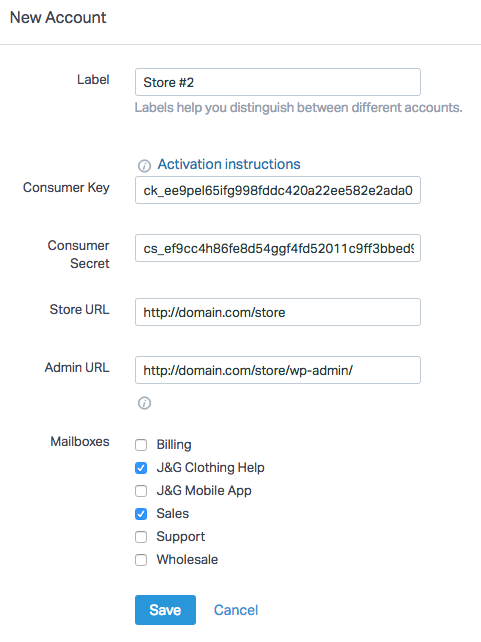 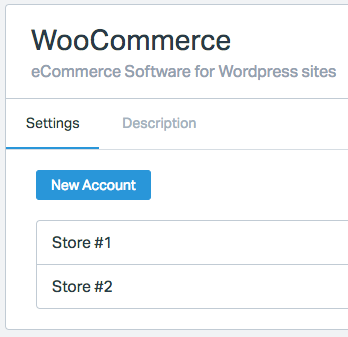 **Note**Did this answer your question? Thanks for the feedback There was a problem submitting your feedback. Please try again later.Yes No No results found
- [Docs](https://hsdemo.frodx.com/en/knowledge/docs#main-content)
- [Working with Docs](https://hsdemo.frodx.com/en/knowledge/docs#working-with-docs)
- [Formatting Content](https://hsdemo.frodx.com/en/knowledge/docs#formatting-content)
- [Managing Docs in Help Scout](https://hsdemo.frodx.com/en/knowledge/docs#managing-docs-in-help-scout)
- [Help Desk](https://hsdemo.frodx.com/en/knowledge/help-desk#main-content)
- [Mobile Apps](https://hsdemo.frodx.com/en/knowledge/help-desk#mobile-apps)
- [Getting Started](https://hsdemo.frodx.com/en/knowledge/help-desk#getting-started)
- [Productivity](https://hsdemo.frodx.com/en/knowledge/help-desk#productivity)
- [Mailbox and User Settings](https://hsdemo.frodx.com/en/knowledge/help-desk#mailbox-and-user-settings)
- [Working with Conversations](https://hsdemo.frodx.com/en/knowledge/help-desk#working-with-conversations)
- [Account Management](https://hsdemo.frodx.com/en/knowledge/help-desk#account-management)
- [Integrations](https://hsdemo.frodx.com/en/knowledge/help-desk#integrations)
- [Copying Email to Help Scout](https://hsdemo.frodx.com/en/knowledge/help-desk#copying-email-to-help-scout)
- [Reporting](https://hsdemo.frodx.com/en/knowledge/help-desk#reporting)
- [Sample Contact Page](https://hsdemo.frodx.com/sample-contact)
- [Sample About Page](https://hsdemo.frodx.com/sample-about)
- [Default HubSpot Blog](https://hsdemo.frodx.com/biglytics-blog)
[.png?width=550&height=171&name=frodx-logo-new%20(1).png "FrodX")](https://en.frodx.com/)
[mailto:email@email.com](mailto:email@email.com)
Copyright © 2026, GateHub Ltd