---
title: Enable SSO With Okta as the Identity Provider
description: Enabling single sign-on (SSO) for your domain within Help Scout allows your Users to easily and securely log in to their accounts. This article will help you get set up if your IdP is Okta. For more g
---
[Skip to content](https://hsdemo.frodx.com/en/knowledge/enable-sso-with-okta-as-the-identity-provider#main-content)
English
Show submenu for translations
.png?width=550&height=171&name=frodx-logo-new%20(1).png)
- [Sample Contact Page](https://hsdemo.frodx.com/sample-contact)
- [Sample About Page](https://hsdemo.frodx.com/sample-about)
- [Default HubSpot Blog](https://hsdemo.frodx.com/biglytics-blog)
Open main navigation
Close main navigation
- [Sample Contact Page](https://hsdemo.frodx.com/sample-contact)
- [Sample About Page](https://hsdemo.frodx.com/sample-about)
- [Default HubSpot Blog](https://hsdemo.frodx.com/biglytics-blog)
- English
Show submenu for translations
- Contact us
Contact us
How can we help you?
- There are no suggestions because the search field is empty.
1. [Help Center](https://hsdemo.frodx.com/en/knowledge)
2. [Help Desk](https://hsdemo.frodx.com/en/knowledge/help-desk)
3. [Account Management](https://hsdemo.frodx.com/en/knowledge/help-desk#account-management)
# Enable SSO With Okta as the Identity Provider
Enabling single sign-on (SSO) for your domain within Help Scout allows your Users to easily and securely log in to their accounts. This article will help you get set up if your IdP is Okta. For more general information on adding and using SSO with Help Scout, check out [Enable SSO in Your Account](https://5256150.hs-sites.com/knowledge/enable-sso-in-your-account). **The SSO feature is available on the Pro plan or as an add-on to the Plus plan.**
#### In this article
- [What is SSO?](https://hsdemo.frodx.com/en/knowledge/enable-sso-with-okta-as-the-identity-provider#what)
- [Set up SSO with Okta](https://hsdemo.frodx.com/en/knowledge/enable-sso-with-okta-as-the-identity-provider#steps)
### What is SSO?
Single sign-on (or SSO) is a way to authenticate and log in to an application with just one set of credentials, rather than having to set up multiple usernames and passwords across different platforms. It's a more secure process and prevents potentially losing or forgetting log in credentials since it's stored through another service.
SAML is an open standard for allowing single sign-on between 2 systems: A Service Provider (that's Help Scout) and an Identity Provider (that's the system storing your organization's user database e.g. Okta, OneLogin etc.).
### Set up SSO with Okta
This section explains step by step how to configure SAML Single Sign-On between Help Scout and Okta as the Identity Provider.
**Note:** Service Provider (Help Scout) provisioning is not supported. Accounts should be created first in the IdP or Help Scout, and then authenticated via the IdP prior to logging in to Help Scout.
You'll need to be the Account Owner or an Administrator to get this setup for your account.
**Manage \> Company \> [Authentication](https://secure.helpscout.net/settings/sso/).**
Do not toggle Enable SAML just yet! Take note of the Post-back URL and the Audience URI at the bottom of the page in your Help Scout account. You will need to copy and paste this information into Okta. You'll come back to this page to Enable SAML before the end.
 **Admin** **Applications (menu) \> Applications (item)** 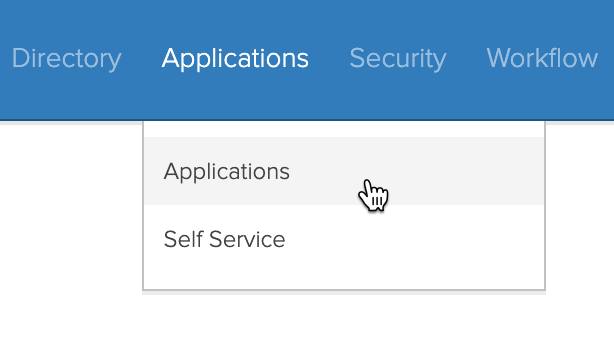 **Add Application** 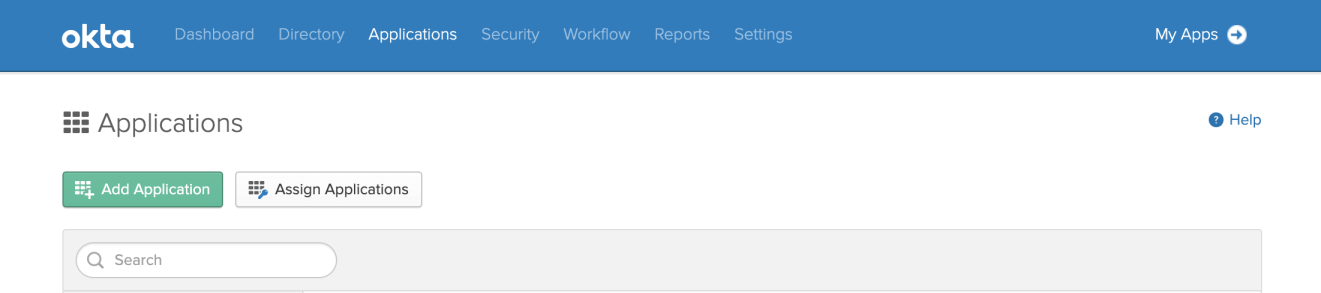 **Create New App** 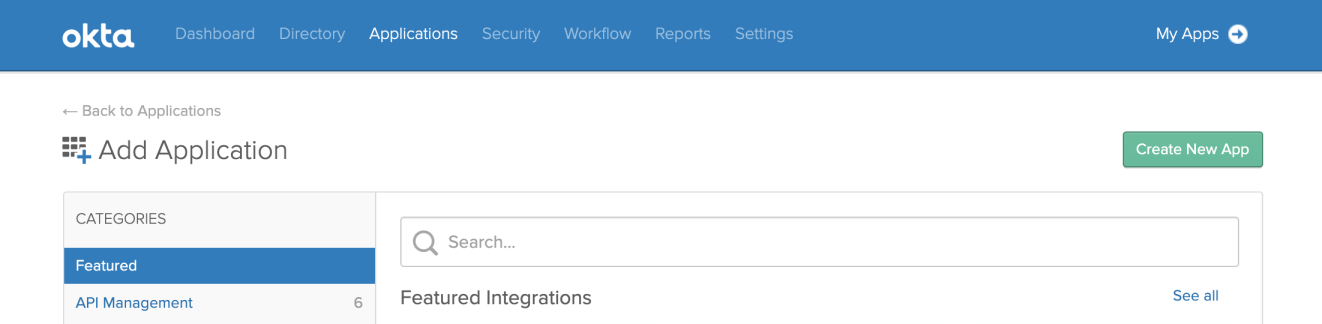 **Web** **SAML 2.0** **Create** 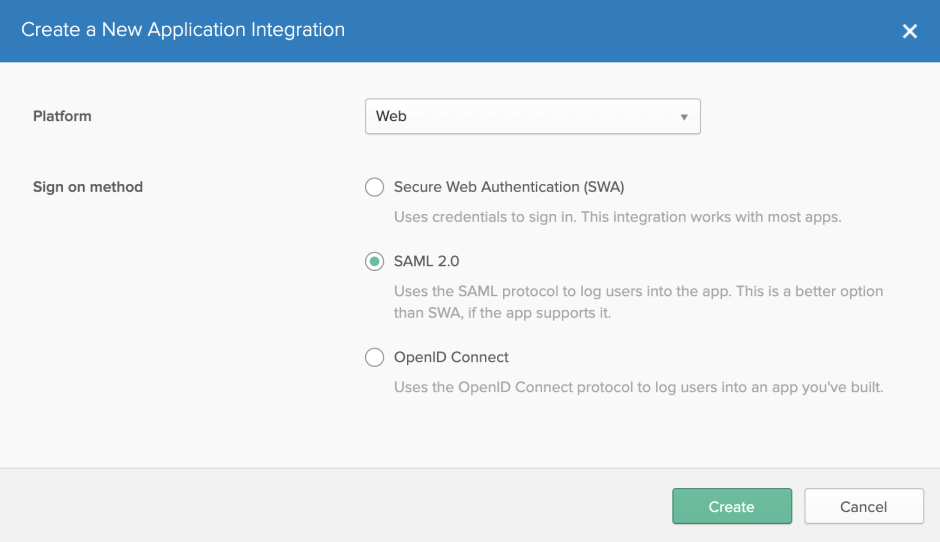 **Help Scout** **Browse** **Upload Logo** **Next** 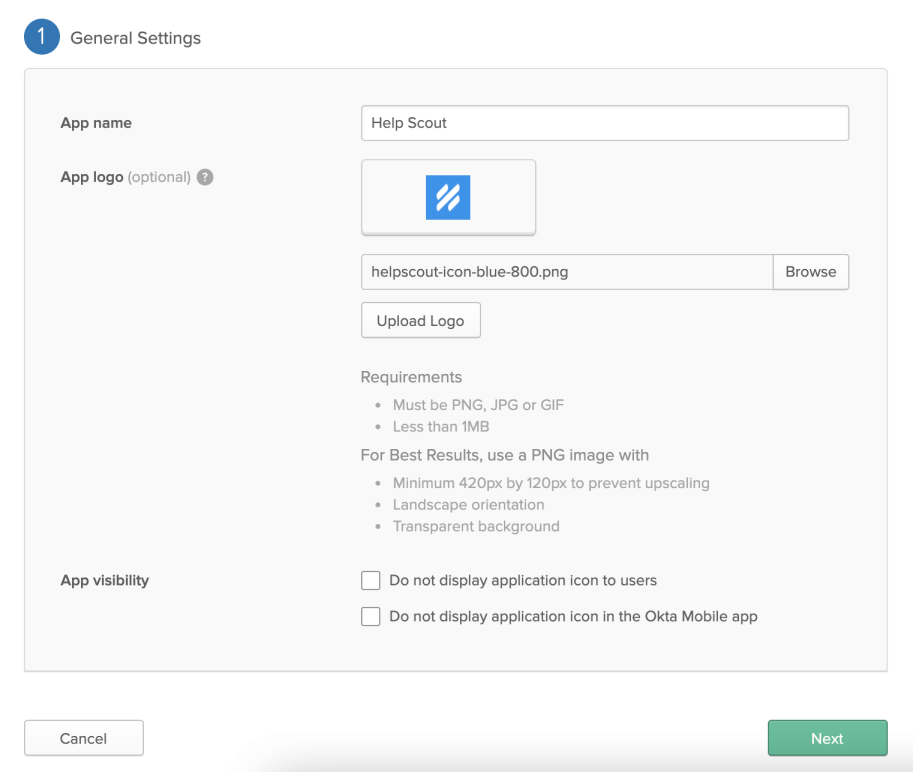 *Post-back URL* **Single sign on URL** *Audience URI* **Audience URI (SP Entity ID)** 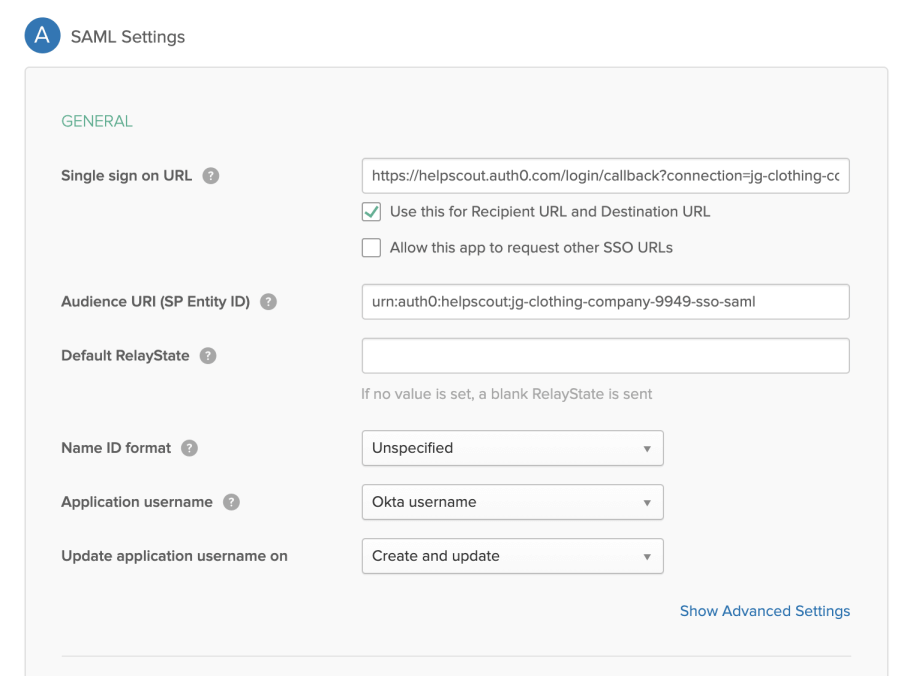
Scroll down to the ATTRIBUTE STATEMENTS (OPTIONAL) section on this same page. Add 3 attributes here as shown below, then click **Next**.
**Tables can't be imported directly. Please insert an image of your table which can be found [here](https://5256150.hs-sites.com/knowledge/enable-sso-with-okta-as-the-identity-provider).**
**Name** **Name Format** **Value** 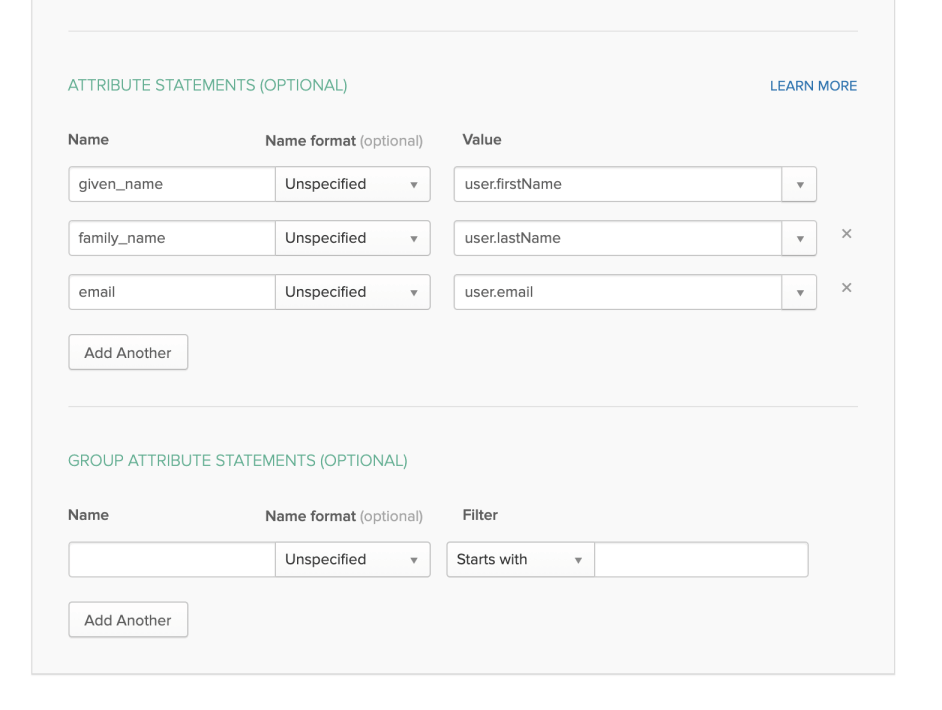 *Are you a customer or a partner?* **I'm an Okta customer adding an internal app** **Finish** **Assignments** 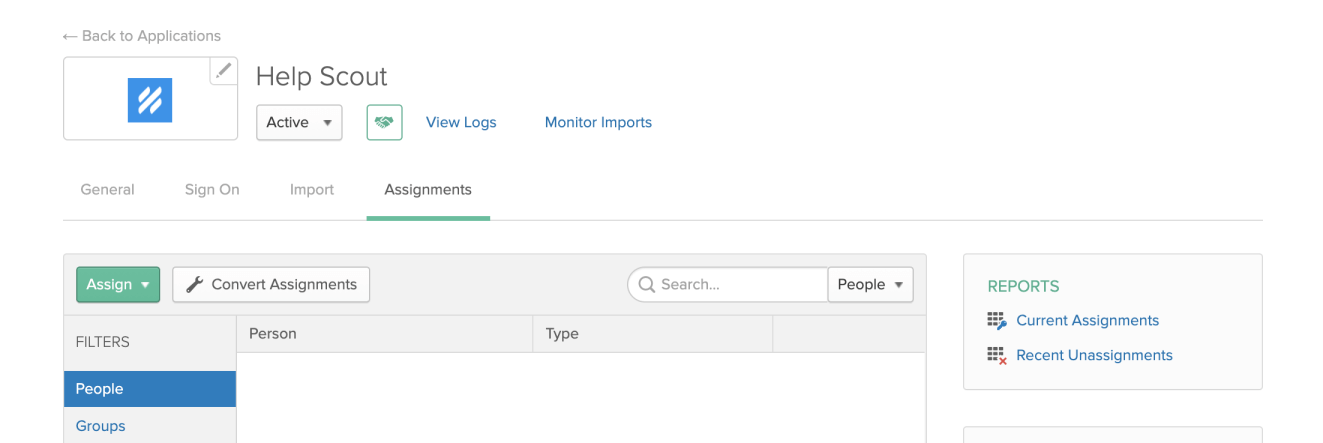 **Sign On**  **View Setup Instructions** *Identity Provider Single Sign-On URL* *X.509 Certificate* **Manage \> Company \> Authentication Enable SAML** **Force SAML Sign-in** *always* **Save**
Single-sign on with Okta is now configured! Your users can now log in to Okta to connect to Help Scout.
Did this answer your question? Thanks for the feedback There was a problem submitting your feedback. Please try again later.Yes No No results found
- [Docs](https://hsdemo.frodx.com/en/knowledge/docs#main-content)
- [Working with Docs](https://hsdemo.frodx.com/en/knowledge/docs#working-with-docs)
- [Formatting Content](https://hsdemo.frodx.com/en/knowledge/docs#formatting-content)
- [Managing Docs in Help Scout](https://hsdemo.frodx.com/en/knowledge/docs#managing-docs-in-help-scout)
- [Help Desk](https://hsdemo.frodx.com/en/knowledge/help-desk#main-content)
- [Mobile Apps](https://hsdemo.frodx.com/en/knowledge/help-desk#mobile-apps)
- [Getting Started](https://hsdemo.frodx.com/en/knowledge/help-desk#getting-started)
- [Productivity](https://hsdemo.frodx.com/en/knowledge/help-desk#productivity)
- [Mailbox and User Settings](https://hsdemo.frodx.com/en/knowledge/help-desk#mailbox-and-user-settings)
- [Working with Conversations](https://hsdemo.frodx.com/en/knowledge/help-desk#working-with-conversations)
- [Account Management](https://hsdemo.frodx.com/en/knowledge/help-desk#account-management)
- [Integrations](https://hsdemo.frodx.com/en/knowledge/help-desk#integrations)
- [Copying Email to Help Scout](https://hsdemo.frodx.com/en/knowledge/help-desk#copying-email-to-help-scout)
- [Reporting](https://hsdemo.frodx.com/en/knowledge/help-desk#reporting)
- [Sample Contact Page](https://hsdemo.frodx.com/sample-contact)
- [Sample About Page](https://hsdemo.frodx.com/sample-about)
- [Default HubSpot Blog](https://hsdemo.frodx.com/biglytics-blog)
[.png?width=550&height=171&name=frodx-logo-new%20(1).png "FrodX")](https://en.frodx.com/)
[mailto:email@email.com](mailto:email@email.com)
Copyright © 2026, GateHub Ltd