---
title: Host a Docs Stylesheet on Dropbox
description: Docs gives you the ability to specify an external stylesheet, which can be used to modify the design of your public website. Check out Customize Your Docs Site for more information on how to set your
---
[Skip to content](https://hsdemo.frodx.com/en/knowledge/host-a-docs-stylesheet-on-dropbox#main-content)
English
Show submenu for translations
.png?width=550&height=171&name=frodx-logo-new%20(1).png)
- [Sample Contact Page](https://hsdemo.frodx.com/sample-contact)
- [Sample About Page](https://hsdemo.frodx.com/sample-about)
- [Default HubSpot Blog](https://hsdemo.frodx.com/biglytics-blog)
Open main navigation
Close main navigation
- [Sample Contact Page](https://hsdemo.frodx.com/sample-contact)
- [Sample About Page](https://hsdemo.frodx.com/sample-about)
- [Default HubSpot Blog](https://hsdemo.frodx.com/biglytics-blog)
- English
Show submenu for translations
- Contact us
Contact us
How can we help you?
- There are no suggestions because the search field is empty.
1. [Help Center](https://hsdemo.frodx.com/en/knowledge)
2. [Docs](https://hsdemo.frodx.com/en/knowledge/docs)
3. [Formatting Content](https://hsdemo.frodx.com/en/knowledge/docs#formatting-content)
# Host a Docs Stylesheet on Dropbox
Docs gives you the ability to specify an external stylesheet, which can be used to modify the design of your public website. Check out [Customize Your Docs Site](https://5256150.hs-sites.com/knowledge/customize-your-docs-site) for more information on how to set your custom CSS. This article specifically shows how to reference a stylesheet hosted on [Dropbox](https://www.dropbox.com/).
Note: Hosting the CSS file in your own web hosting space or uploading the file directly to Docs settings are preferable options to hosting on Dropbox. This article is not a recommendation to host with Dropbox, we are just providing the extra steps you'll need to take if you decide to do so.
Create your CSS file and save it with a *.css* extension. Save this file in the Dropbox folder on your computer or upload the file using the Dropbox web app.
Navigate to the file you saved in the Dropbox web app. Click the 3 dots on the right side of the file and choose **Share**. Click **Create Link** then **Close**. If you are using Dropbox Business or Professional, you will also need to click **Link Settings** and change the Link Access setting to Anyone.
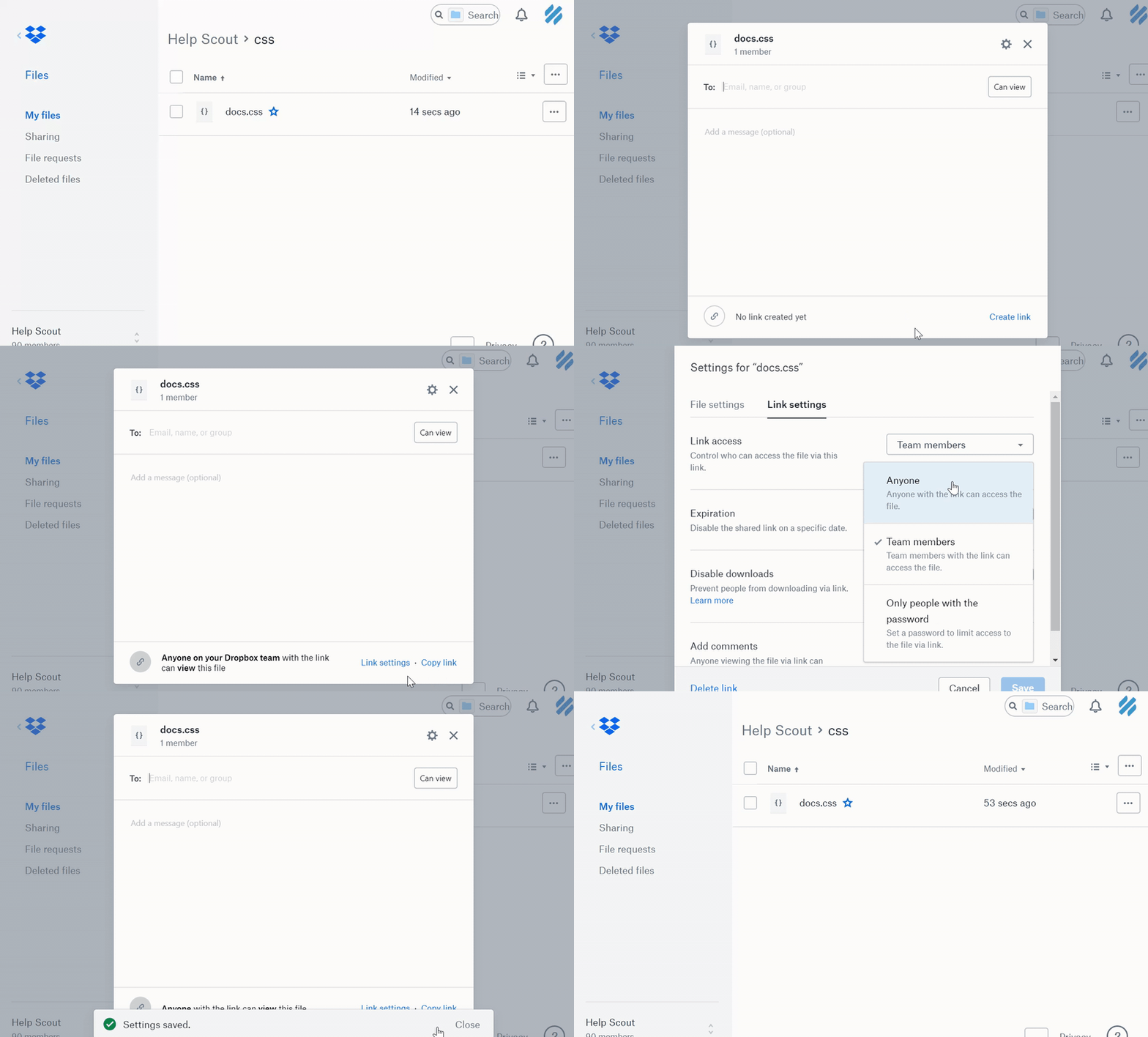
Head over to your [Docs Settings](https://secure.helpscout.net/settings/docs/) page and click into the **Custom Code** section. Paste the URL you just copied into the **Custom Stylesheet URL** field. But wait, there's more: this next part is super important!
The link you just pasted looks something like this:
`https://www.dropbox.com/s/19kh2r77nipor2w/test.css?dl=0`
You need to change the *www* in the URL to *dl*, and remove the ?dl=0 from the end so it looks like this:
`https://dl.dropbox.com/s/19kh2r77nipor2w/test.css`

This allows Docs to access the *source* of the file rather than the Dropbox page for the file. Click the **Save** button at the bottom of the page when you're finished.
If you have the Dropbox app installed on your computer, start editing the CSS as desired from the Dropbox folder. When you save the file, Dropbox will sync the changes automatically. You can refresh your Docs public site to see those changes take effect.
Did this answer your question? Thanks for the feedback There was a problem submitting your feedback. Please try again later.Yes No No results found
- [Docs](https://hsdemo.frodx.com/en/knowledge/docs#main-content)
- [Working with Docs](https://hsdemo.frodx.com/en/knowledge/docs#working-with-docs)
- [Formatting Content](https://hsdemo.frodx.com/en/knowledge/docs#formatting-content)
- [Managing Docs in Help Scout](https://hsdemo.frodx.com/en/knowledge/docs#managing-docs-in-help-scout)
- [Help Desk](https://hsdemo.frodx.com/en/knowledge/help-desk#main-content)
- [Mobile Apps](https://hsdemo.frodx.com/en/knowledge/help-desk#mobile-apps)
- [Getting Started](https://hsdemo.frodx.com/en/knowledge/help-desk#getting-started)
- [Productivity](https://hsdemo.frodx.com/en/knowledge/help-desk#productivity)
- [Mailbox and User Settings](https://hsdemo.frodx.com/en/knowledge/help-desk#mailbox-and-user-settings)
- [Working with Conversations](https://hsdemo.frodx.com/en/knowledge/help-desk#working-with-conversations)
- [Account Management](https://hsdemo.frodx.com/en/knowledge/help-desk#account-management)
- [Integrations](https://hsdemo.frodx.com/en/knowledge/help-desk#integrations)
- [Copying Email to Help Scout](https://hsdemo.frodx.com/en/knowledge/help-desk#copying-email-to-help-scout)
- [Reporting](https://hsdemo.frodx.com/en/knowledge/help-desk#reporting)
- [Sample Contact Page](https://hsdemo.frodx.com/sample-contact)
- [Sample About Page](https://hsdemo.frodx.com/sample-about)
- [Default HubSpot Blog](https://hsdemo.frodx.com/biglytics-blog)
[.png?width=550&height=171&name=frodx-logo-new%20(1).png "FrodX")](https://en.frodx.com/)
[mailto:email@email.com](mailto:email@email.com)
Copyright © 2026, GateHub Ltd