---
title: Manage Your User Profile
description: The User Profile is where you’ll enter the personal details that make your Help Scout account uniquely yours. This article will walk you through all of the options available on your Help Scout User pr
---
[Skip to content](https://hsdemo.frodx.com/en/knowledge/manage-your-user-profile#main-content)
English
Show submenu for translations
.png?width=550&height=171&name=frodx-logo-new%20(1).png)
- [Sample Contact Page](https://hsdemo.frodx.com/sample-contact)
- [Sample About Page](https://hsdemo.frodx.com/sample-about)
- [Default HubSpot Blog](https://hsdemo.frodx.com/biglytics-blog)
Open main navigation
Close main navigation
- [Sample Contact Page](https://hsdemo.frodx.com/sample-contact)
- [Sample About Page](https://hsdemo.frodx.com/sample-about)
- [Default HubSpot Blog](https://hsdemo.frodx.com/biglytics-blog)
- English
Show submenu for translations
- Contact us
Contact us
How can we help you?
- There are no suggestions because the search field is empty.
1. [Help Center](https://hsdemo.frodx.com/en/knowledge)
2. [Help Desk](https://hsdemo.frodx.com/en/knowledge/help-desk)
3. [Account Management](https://hsdemo.frodx.com/en/knowledge/help-desk#account-management)
# Manage Your User Profile
The User Profile is where you’ll enter the personal details that make your Help Scout account uniquely yours. This article will walk you through all of the options available on your Help Scout User profile.
#### In this article
- [Profile Overview](https://hsdemo.frodx.com/en/knowledge/manage-your-user-profile#basics)
- [Additional Settings](https://hsdemo.frodx.com/en/knowledge/manage-your-user-profile#tabs)
### Profile Overview
To get to your own User profile, click your avatar or initials in the top right corner and choose **Your Profile**. 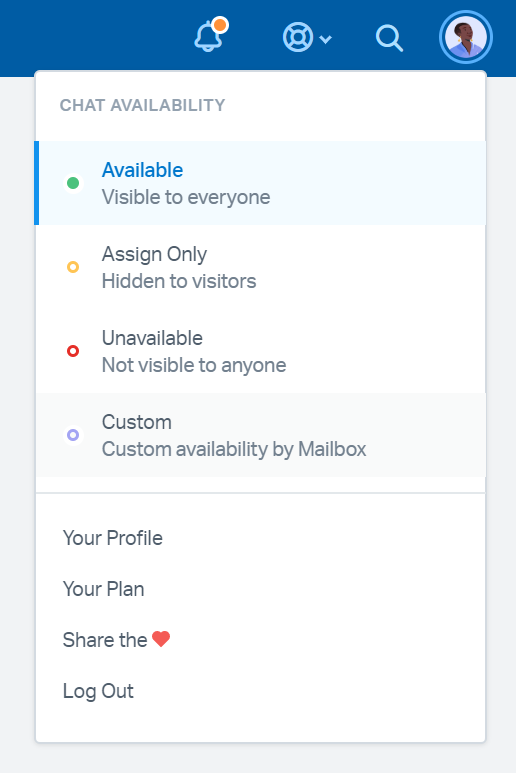
Each Help Scout User can maintain their own User Profile to reflect their own preferences. Account Owners and Administrators can change settings on for Users' profiles by going to **Manage \> Users**.
[Variables](https://docs.helpscout.com/article/468-variables) for email signatures or Saved Replies use the information from your User profile.
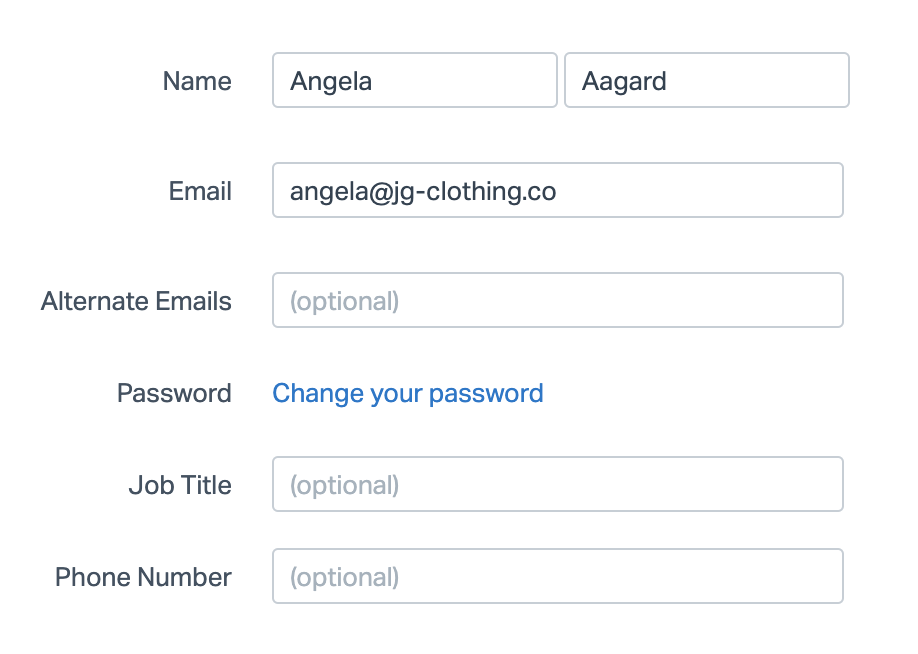
#### Name
This is the name that will be shown throughout Help Scout and in Beacon chat and previous messages.
#### Email
This is your primary email address for Help Scout, and the email address you use to log in to Help Scout.
#### Alternate Emails
Enter any other email addresses that you want Help Scout to treat as emails from you here. You can manually forward emails from those addresses, but you cannot use those to log in to Help Scout. Here's a quick primer on manual forwarding: [Manually Forward Email to Help Scout](https://5256150.hs-sites.com/knowledge/manually-forward-email-to-help-scout)
#### Password
Click the link to change your password.
#### Job Title and Phone Number
Used in variables for signatures and Saved Replies.
#### Maximum Chats
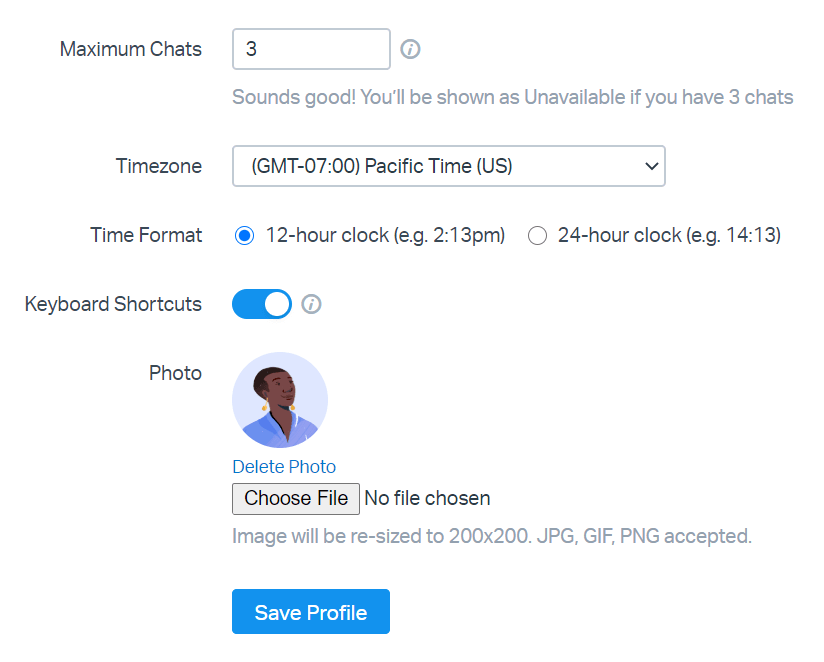
The number of chats this User will be able to accept before being considered Unavailable for new chats in Beacon. For more on this feature, head over to [User Availability and Maximum Chats](https://5256150.hs-sites.com/knowledge/user-availability-and-maximum-chats).
#### Timezone and Time Format
The Timezone dropdown dictates the time stamp on your conversations and inside your folders. The Time Format controls how the time is displayed in Help Scout for you.
#### Keyboard shortcuts
[Keyboard Shortcuts](https://5256150.hs-sites.com/knowledge/keyboard-shortcuts) provide a quick and easy way to move around Help Scout. If you'd like to disable the shortcuts, you can do so by toggling off the **Keyboard Shortcuts** option.
#### Photo
You can upload a photo of yourself to serve as your Help Scout avatar. You'll see your profile photo next to replies and notes that you add in Help Scout. This photo may also appear in Beacon to your customers. (More details on what shows in Beacon: [What Information Your Visitors Can See](https://docs.helpscout.com/article/1233-manage-beacon-contact-settings#data).)
If you want your customers to see your smiling faces in your email replies, you can add your profile photo to the mailbox email signature (more about that in [Create and Manage Mailbox Signatures: Use Variables to Personalize Your Signature](https://docs.helpscout.com/article/547-create-and-manage-mailbox-signatures#variable)).
To upload a photo, press the **Choose File** or **Browse...** button and select an image from your computer. Press **Save Profile** to view the photo preview and save your changes simultaneously.
### Additional Settings
These options are found in the left navigation menu from Your Profile.
#### Authentication
Under the Authentication page, you'll find 4 tabs:
- **Security:** Enable or disable Two-factor Authentication for your Help Scout account. Learn more here: [Set Up Two-factor Authentication](https://5256150.hs-sites.com/knowledge/set-up-two-factor-authentication)
- **Docs API Keys:** Create and manage API keys for any dynamic integrations that need to retrieve information from your Help Scout Docs site. Access to the [Docs API](https://developer.helpscout.com/docs-api/) is available on the Standard, Plus, and Pro plans.
- **Authorized Apps:** If you have used your credentials to authorize any apps to connect to Help Scout, you will see those here.
- **Active Sessions:** Lists active sessions for your account. You can revoke access to sessions you do not recognize. Learn more here: [Session Management](https://5256150.hs-sites.com/knowledge/session-management)
#### Notifications
Set up and manage email, browser, and mobile notifications. Learn more about notifications in this article: [Manage Help Scout Notifications](https://5256150.hs-sites.com/knowledge/manage-help-scout-notifications)
#### Auto Bcc
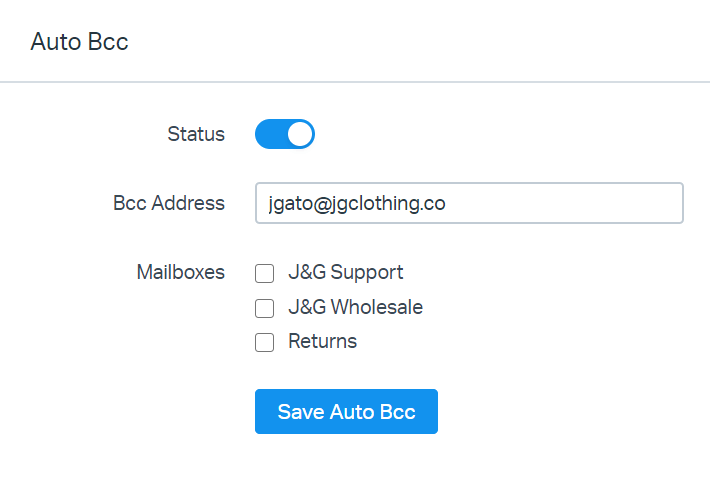
Auto Bcc allows you to send replies you make in Help Scout to a specific external address. Auto Bcc also applies to conversations you reply to from email notifications. When replying to an email notification, you can use the **@nobcc** command to prevent your reply from being sent out to the specified Bcc address.
If you'd like to add an Auto Bcc address for your mailbox for all senders, any Admin can do so from [Mailbox Settings](https://docs.helpscout.com/article/1267-mailbox-settings#default).
Did this answer your question? Thanks for the feedback There was a problem submitting your feedback. Please try again later.Yes No No results found
- [Docs](https://hsdemo.frodx.com/en/knowledge/docs#main-content)
- [Working with Docs](https://hsdemo.frodx.com/en/knowledge/docs#working-with-docs)
- [Formatting Content](https://hsdemo.frodx.com/en/knowledge/docs#formatting-content)
- [Managing Docs in Help Scout](https://hsdemo.frodx.com/en/knowledge/docs#managing-docs-in-help-scout)
- [Help Desk](https://hsdemo.frodx.com/en/knowledge/help-desk#main-content)
- [Mobile Apps](https://hsdemo.frodx.com/en/knowledge/help-desk#mobile-apps)
- [Getting Started](https://hsdemo.frodx.com/en/knowledge/help-desk#getting-started)
- [Productivity](https://hsdemo.frodx.com/en/knowledge/help-desk#productivity)
- [Mailbox and User Settings](https://hsdemo.frodx.com/en/knowledge/help-desk#mailbox-and-user-settings)
- [Working with Conversations](https://hsdemo.frodx.com/en/knowledge/help-desk#working-with-conversations)
- [Account Management](https://hsdemo.frodx.com/en/knowledge/help-desk#account-management)
- [Integrations](https://hsdemo.frodx.com/en/knowledge/help-desk#integrations)
- [Copying Email to Help Scout](https://hsdemo.frodx.com/en/knowledge/help-desk#copying-email-to-help-scout)
- [Reporting](https://hsdemo.frodx.com/en/knowledge/help-desk#reporting)
- [Sample Contact Page](https://hsdemo.frodx.com/sample-contact)
- [Sample About Page](https://hsdemo.frodx.com/sample-about)
- [Default HubSpot Blog](https://hsdemo.frodx.com/biglytics-blog)
[.png?width=550&height=171&name=frodx-logo-new%20(1).png "FrodX")](https://en.frodx.com/)
[mailto:email@email.com](mailto:email@email.com)
Copyright © 2026, GateHub Ltd