.png?width=550&height=171&name=frodx-logo-new%20(1).png)
Enabling single sign-on (SSO) for your domain within Help Scout allows Users you manage using an identity provider to easily and securely log in to their accounts. This article is all about SSO and how to set it up in your account.
The SSO feature is included in the Pro plan or as a part of the Advanced Security add-on for the Plus plan.
Note: If you use Google Workspace (formerly G Suite) to manage your users, you'll want to head over to Google Workspace Integration for Google Single Sign-on (SSO) for the steps to set that up.
In this article
What is SSO?
Single sign-on (or SSO) is a way to manage your organization's users, allowing them to authenticate and log in to many different applications with just one set of credentials, rather than having to set up multiple usernames and passwords across different platforms. It allows you to manage your users in a single location at your identity provider and prevents potentially losing or forgetting Help Scout login credentials, as those are stored through another service.
Add the Advanced Security Add-On
Account Owners can add the Advanced Security add-on to Standard and Plus plans. Just head over to Your Plan > Add-ons and click Free Trial next to the Advanced Security option.
Setting up SAML/SSO
To complete the setup in Help Scout, you must already have service with an identity provider (IdP) of your choice.
Note: Service Provider (Help Scout) provisioning is not supported. Accounts should be created first in the IdP or Help Scout, and then authenticated via the IdP prior to logging in to Help Scout.
You'll need to be either the Help Scout Account Owner or an Administrator to follow these steps. See User Roles and Permissions for more information there.
Manage > Company > Authentication Enable SAML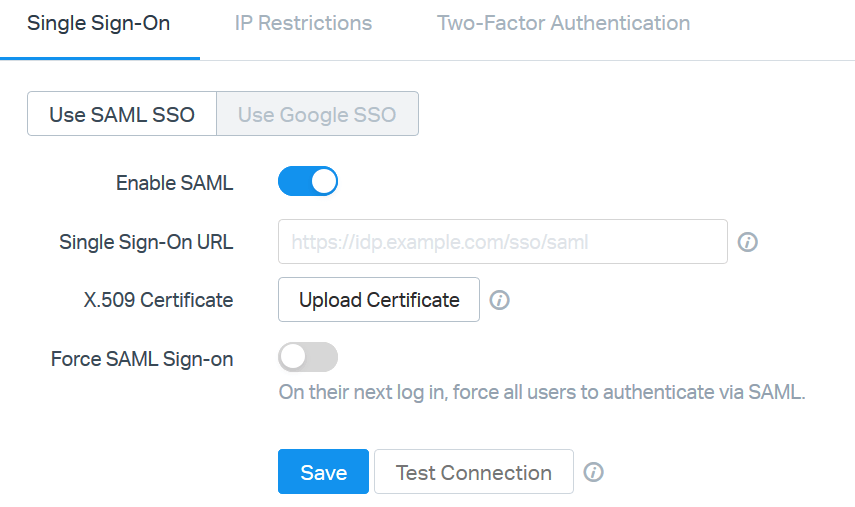
- Enabling SSO with OneLogin as the Identity Provider
- Enabling SSO with Okta as the Identity Provider
- Enabling SSO with Azure AD as the Identity Provider
- Enabling SSO with a Generic Identity Provider
All of the details you need to create a new application with your IdP are found on the Manage > Company > Authentication > Single Sign-On page: 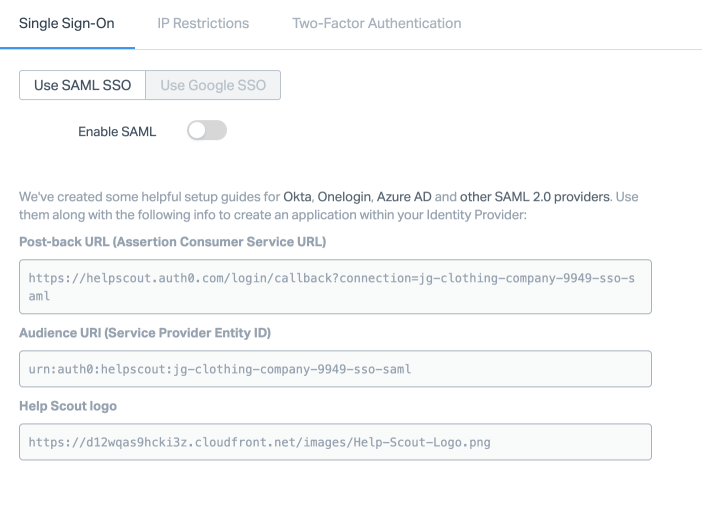
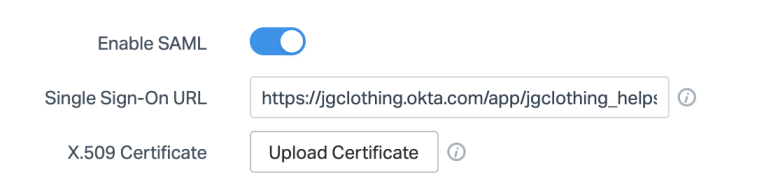 .cer
.cert
.pem
Force SAML Sign-in
.cer
.cert
.pem
Force SAML Sign-in

Did this answer your question? Thanks for the feedback There was a problem submitting your feedback. Please try again later.Yes No No results found