---
title: Help Scout Hack Pack
description: Help Scout Hack Pack
---
[Skip to content](https://hsdemo.frodx.com/en/knowledge/help-scout-hack-pack#main-content)
English
Show submenu for translations
.png?width=550&height=171&name=frodx-logo-new%20(1).png)
- [Sample Contact Page](https://hsdemo.frodx.com/sample-contact)
- [Sample About Page](https://hsdemo.frodx.com/sample-about)
- [Default HubSpot Blog](https://hsdemo.frodx.com/biglytics-blog)
Open main navigation
Close main navigation
- [Sample Contact Page](https://hsdemo.frodx.com/sample-contact)
- [Sample About Page](https://hsdemo.frodx.com/sample-about)
- [Default HubSpot Blog](https://hsdemo.frodx.com/biglytics-blog)
- English
Show submenu for translations
- Contact us
Contact us
How can we help you?
- There are no suggestions because the search field is empty.
1. [Help Center](https://hsdemo.frodx.com/en/knowledge)
2. [Help Desk](https://hsdemo.frodx.com/en/knowledge/help-desk)
3. [Getting Started](https://hsdemo.frodx.com/en/knowledge/help-desk#getting-started)
# Help Scout Hack Pack
### 27 tips and tricks to bring next level skills to your Help Scout game
We pride Help Scout on being intuitive and easy to learn, but there are a ton of useful tidbits hiding all over the app that can be tricky to find on your own. We’ve put together a cheat sheet of the most useful nuggets to bring pro skills to your Help Scout game.
### Conversations and Customers
#### 1. Search by Tag without leaving the editor
Sometimes a saved reply will do, and sometimes a reply requires a little more nuance. Click on Tags in conversations to search how similar conversations were handled previously, without leaving the editor. 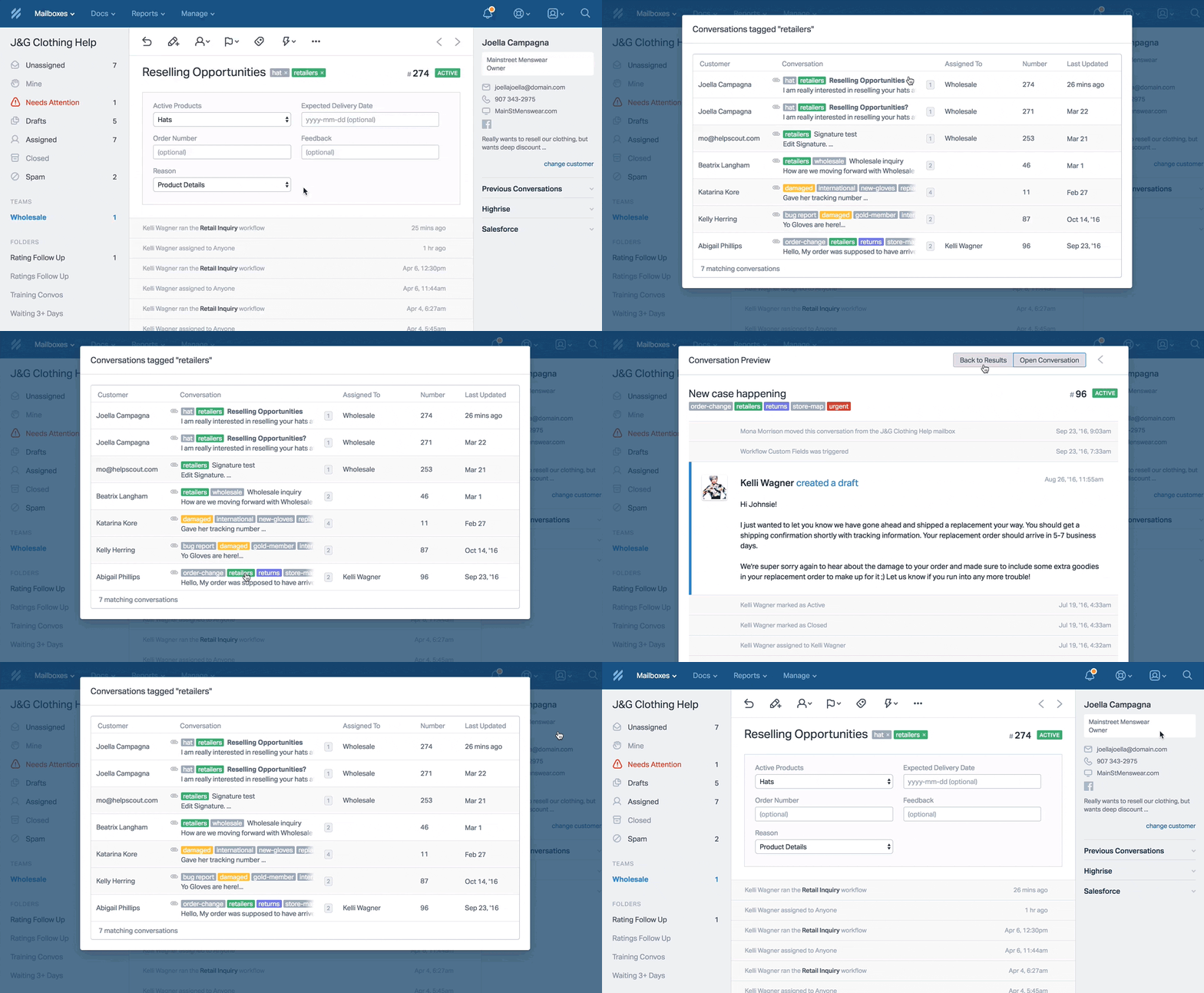
#### 2. Send a conversation on behalf of a team member
Training new team members? Have your newbies save responses as drafts for approval. You can send on their behalf from the Send options dropdown when it’s ready to go. 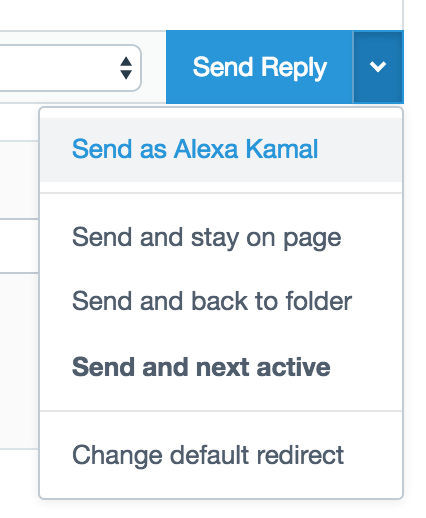 It’s also great to send on behalf of a teammate if you spot a finished reply in the draft folder from a team member that has left for the day. Send on their behalf so your customer won’t wait for a reply, and you won’t steal their thunder.
#### 3. Change where you redirect after a reply or note
Not quite ready to jump to the next Active convo once you’ve finished composing your reply? Change your default redirect from the Send options dropdown.
- If you collaborate with teammates by posting notes, assigning to different teams, or moving conversations to other Mailboxes, select **Send and stay on page** to avoid chasing your conversations once you have replied.
- If you’re in more of a supervisory role and like to check in on what’s happening in the queue after replying to conversations, **Send and go back to folder** might be a better direction for you.
- Or, just keep it as **Send and next active** if you’d rather run rapid fire through the queue!
#### 4. Link to a specific conversation thread
Need to point out exactly when something went awry in a conversation? Link directly to a thread by grabbing the URL from the timestamp. 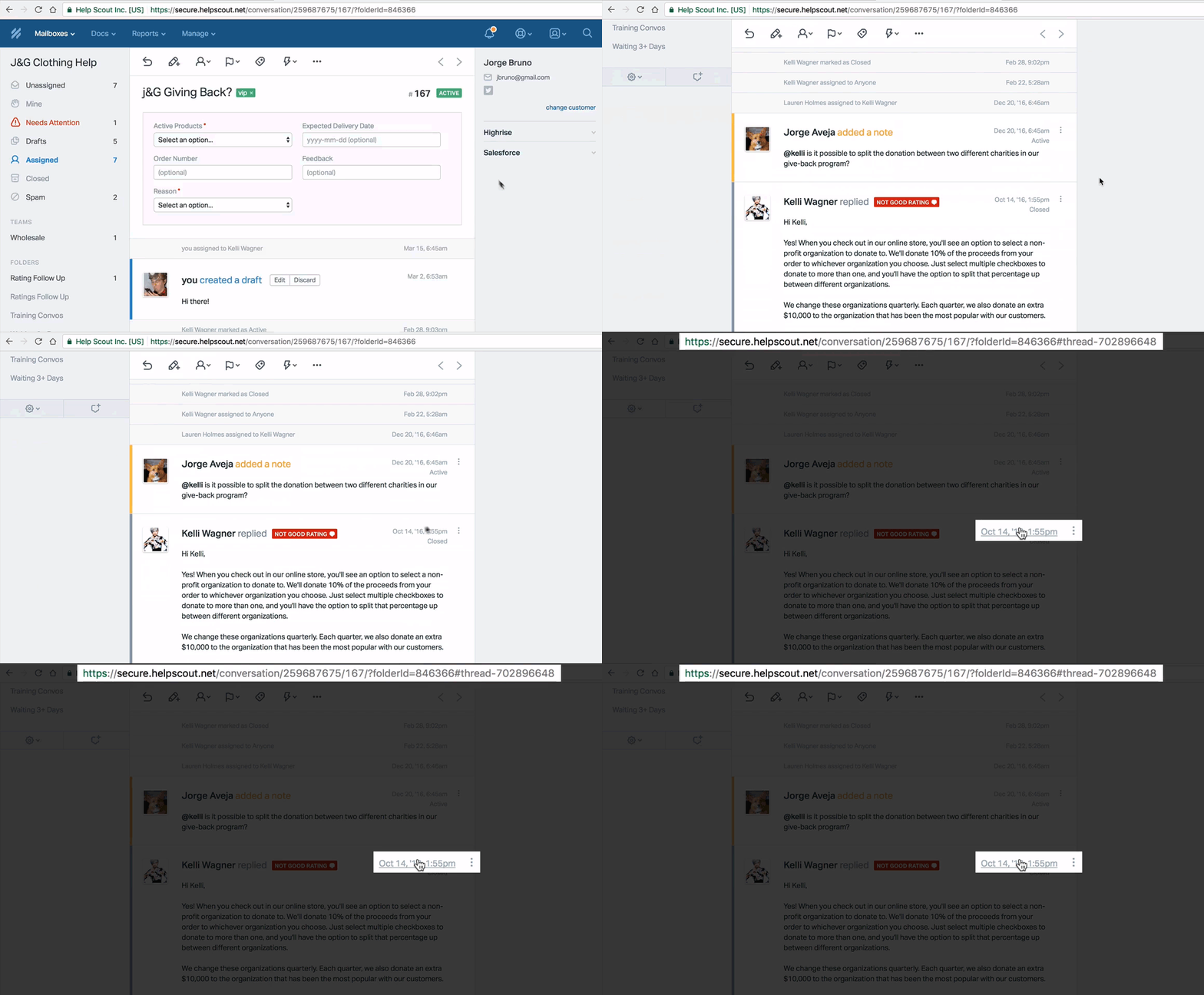
#### 5. Save images in Saved Replies
Save Replies from the reply editor to include inline images or animated GIFs in your Saved Reply. To work with Help Scout's editor, please make sure GIFs are less 600px wide. 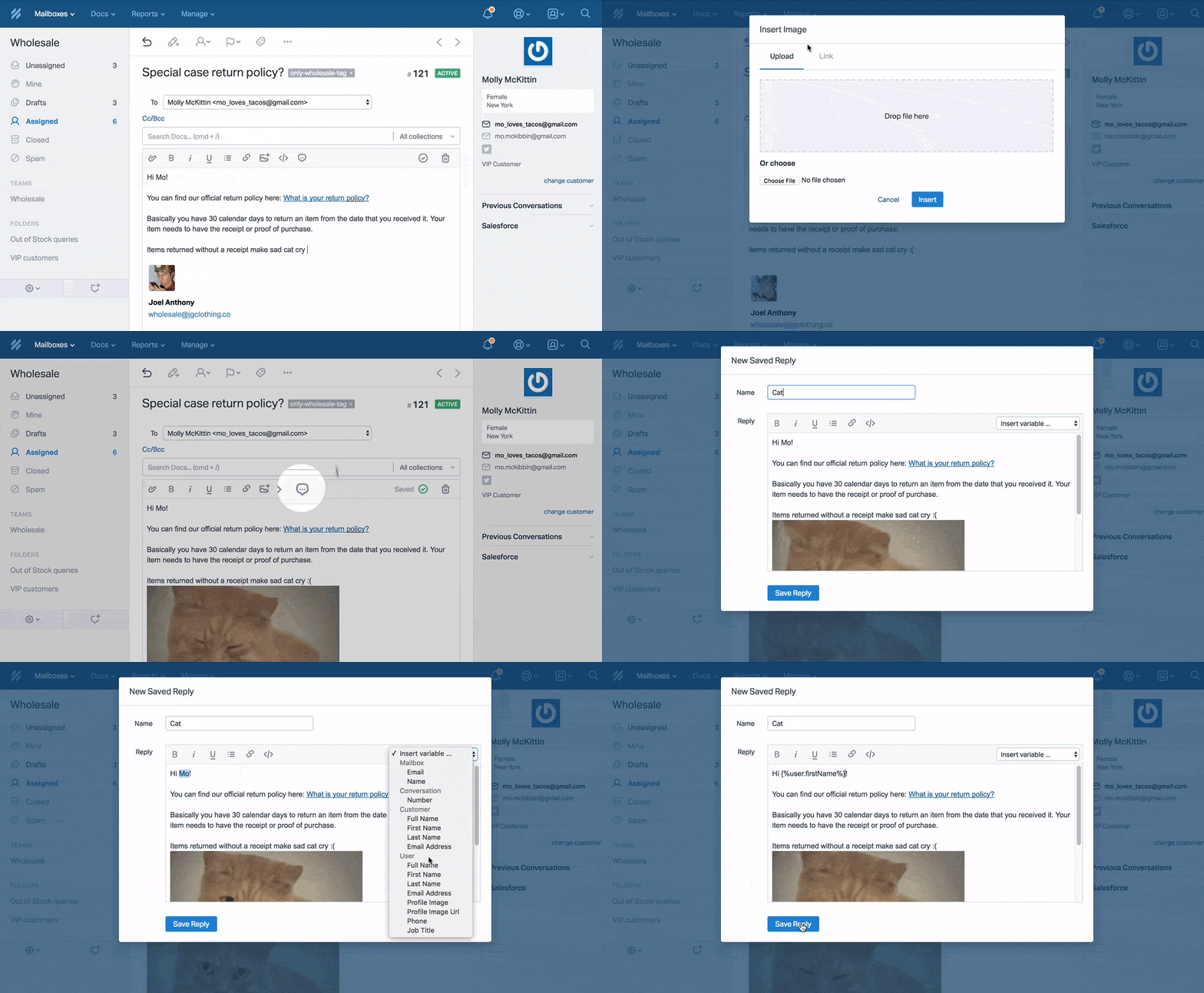
#### 6. Start New Conversations from the Customer Profile
Click on the customer’s email address from the left sidebar of their Customer Profile to start a New Conversation with that customer. 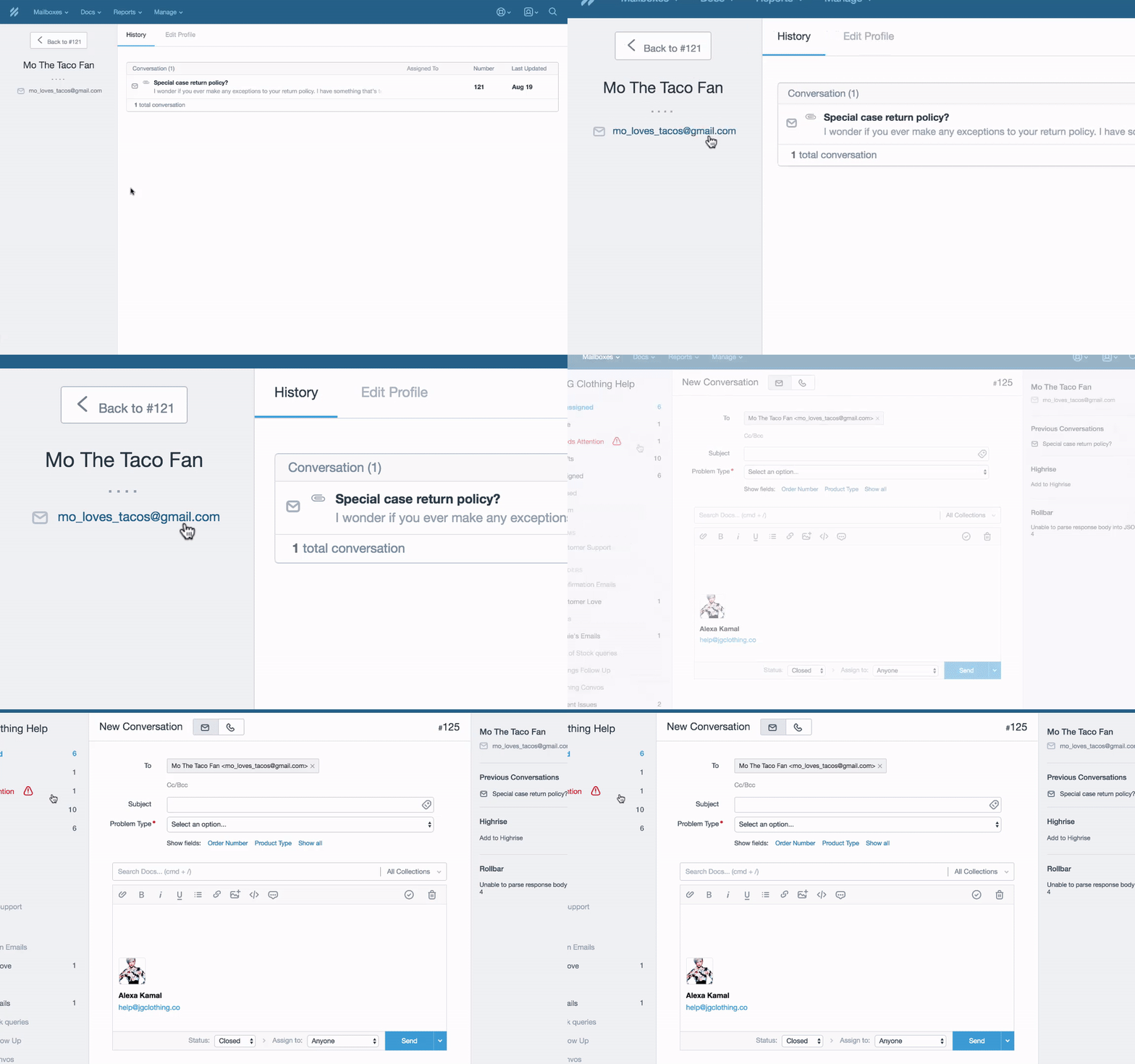
#### 7. Save a pre-filled subject for New Conversations
**New Conversation**
#### 8. Merge Customer Profiles
#### 9. Update conversations in Help Scout from your email inbox
Enable and reply to email notifications to update Help Scout conversations right from your inbox. Reply directly to reply to the customer from Help Scout, and use @commands to update the status, assignee, tag, or add notes. You can also forward emails from your personal address so your support team can reply to the customer instead.
#### 10. Follow up on Negative Ratings and Comments
**Workflow** 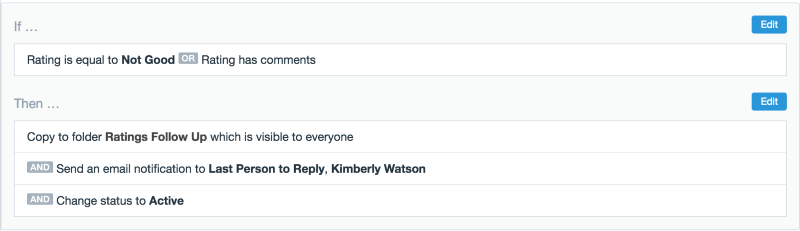 If you have customers who like to ask additional questions in the Rating Comments section, you can also set Workflows to send email notifications or reactivate conversations for Rating Comments.
### Productivity
#### 11. Batch add replies or notes with Manual Workflows
Create a Manual Workflow with a Note or Saved Reply to batch add them from the folder queue view. You can edit the note or reply before committing to send, but it’s a great way to update a ton of conversations in bulk. You can even add a tag with it, too! 
#### 12. Tag feature requests to keep customers notified
Adding Tags for popular feature requests not only helps to keep an eye on the magnitude of customers asking for a particular feature, but it also helps to keep them informed when a feature is released. Create a Workflow for the feature Tag to send an email to your customers, and you’ll let everyone who sent a feature request know it’s available in one fell swoop. 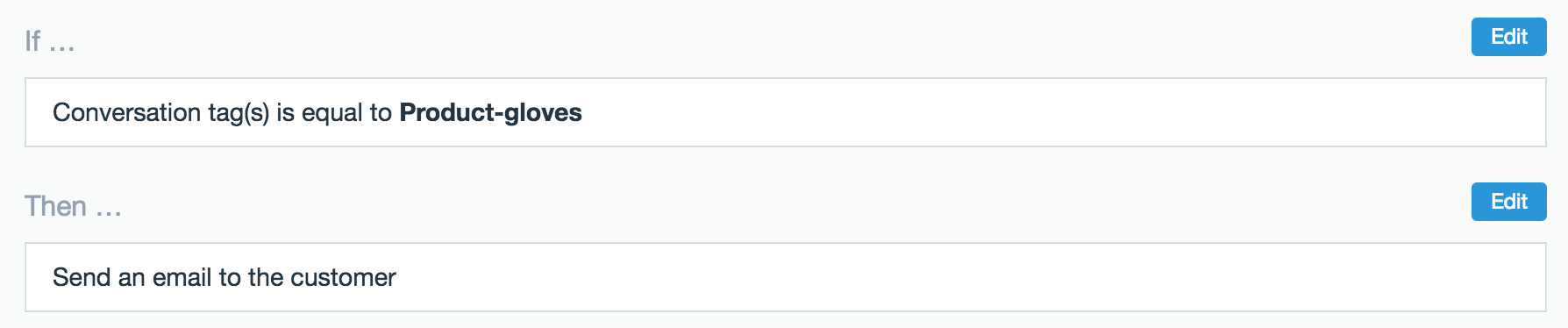
#### 13. Search \* for a unified Mailbox view
*status:active* *status:pending* *-status:deleted* 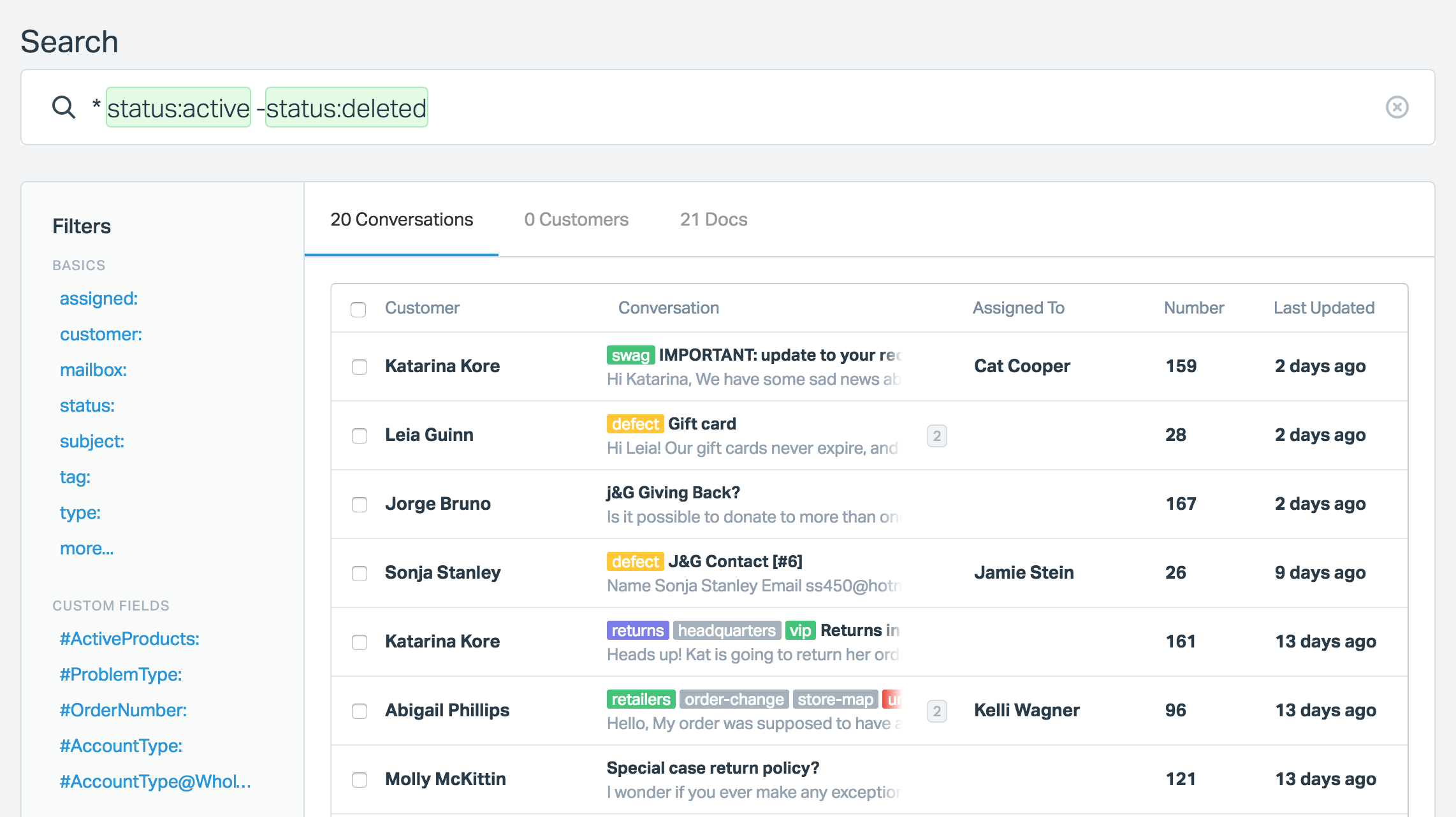
#### 14. Batch remove Tags with Manual Workflows
Working on Tag maintenance? If you need to remove a bunch of Tags from a folder but you don’t want to remove the Tag entirely, wrap it up in a Manual Workflow. You can set up the Workflow to remove your tag and batch apply from the folder queue. It’s a lot quicker than clicking into each individual conversation. 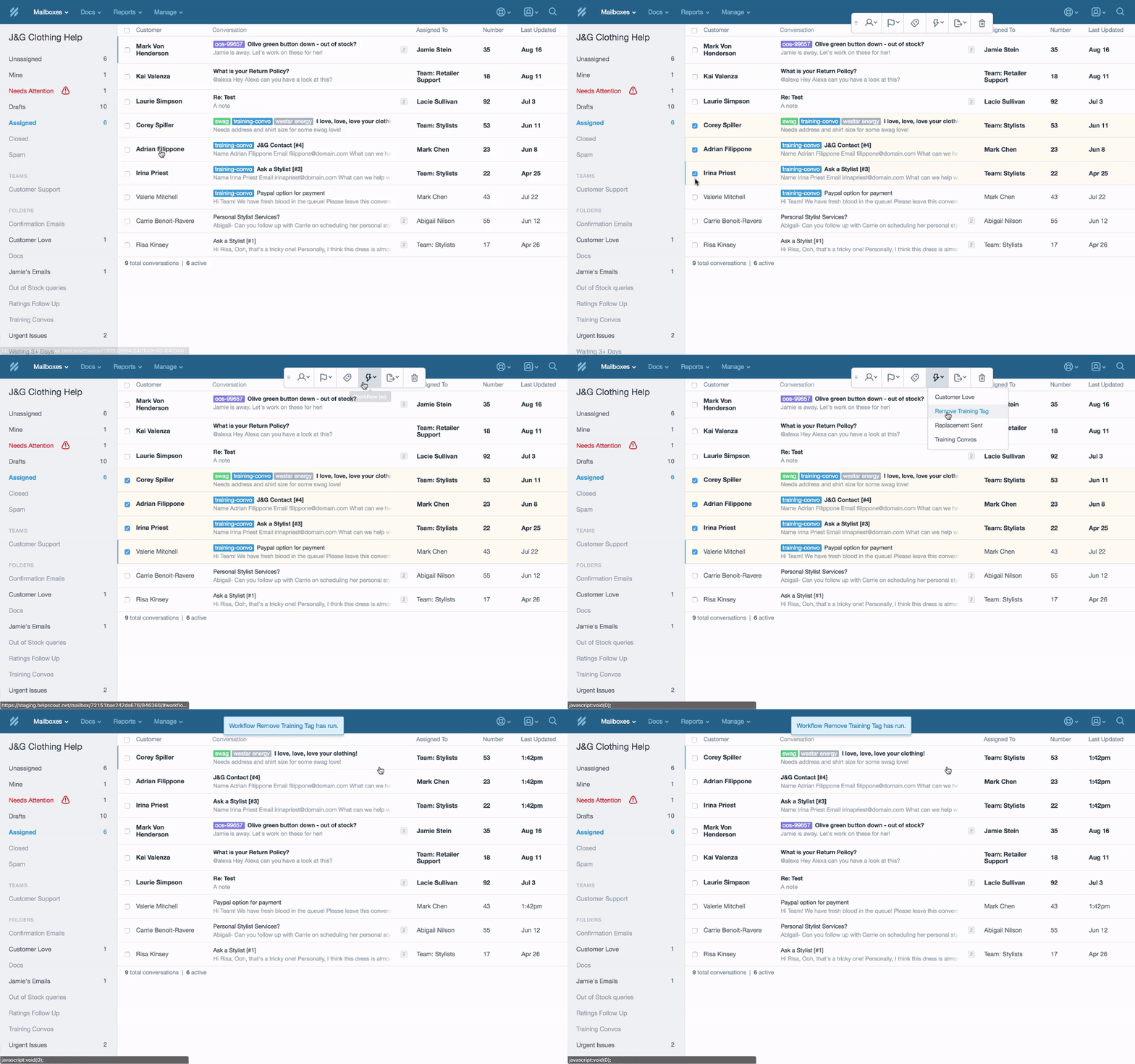
#### 15. Set reminders with FollowUpThen
*5minutes@followupthen.com* 
#### 16. Color code Tags
Add some visual organization to your queue by color coding Tags. Head to Manage \> Tags, click on the Tags you want to color code, and a color menu appears. It provides a great visual queue for spotting urgent or specialized issues coming into your queue at a glance. 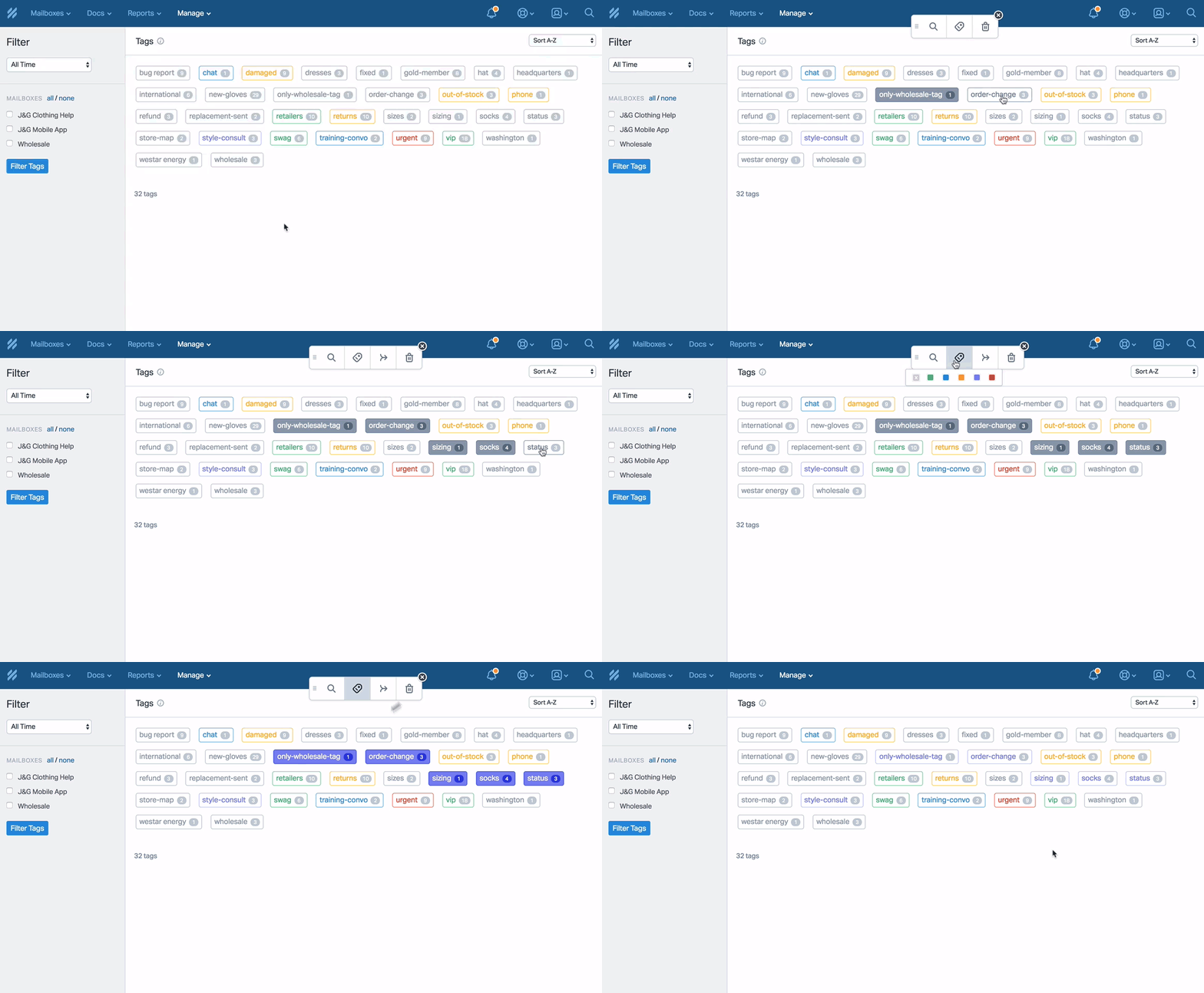
#### 17. Trigger Workflows from Beacon
**Here’s how to set it up**
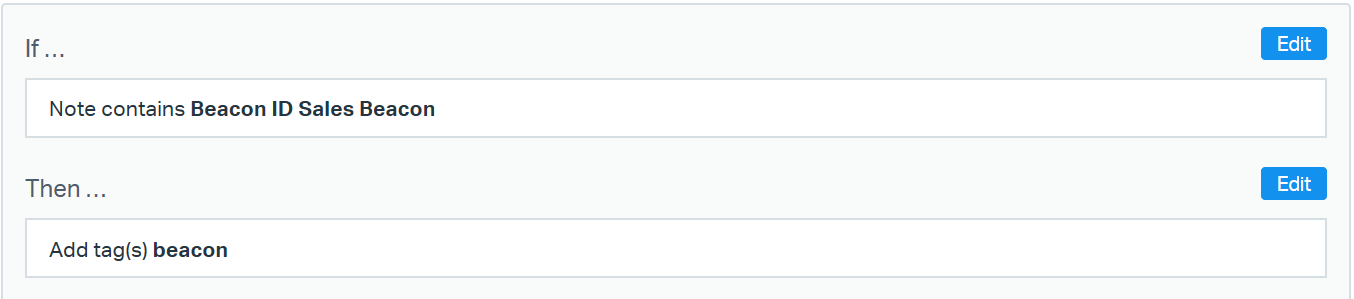
- Body \> Notes Contain
- Add text from the note that Beacon leaves for your condition. For example, if you wanted to catch every conversation that came from your Beacon named *Sales Beacon*, it would look like this:
#### 18. Copy Workflows to other Mailboxes
Need to set up several Mailboxes with similar Workflows? You don’t need to create them all from scratch. Copy Workflows to other Mailboxes to quickly clone your Workflows to any Mailbox you need: 
#### 19. Specialize Auto Replies
**Help Scout Auto** **Reply** **Workflows**
### Sorting and Organizing
#### 20. Star Mailboxes on your dashboard
**five** **Mailboxes** 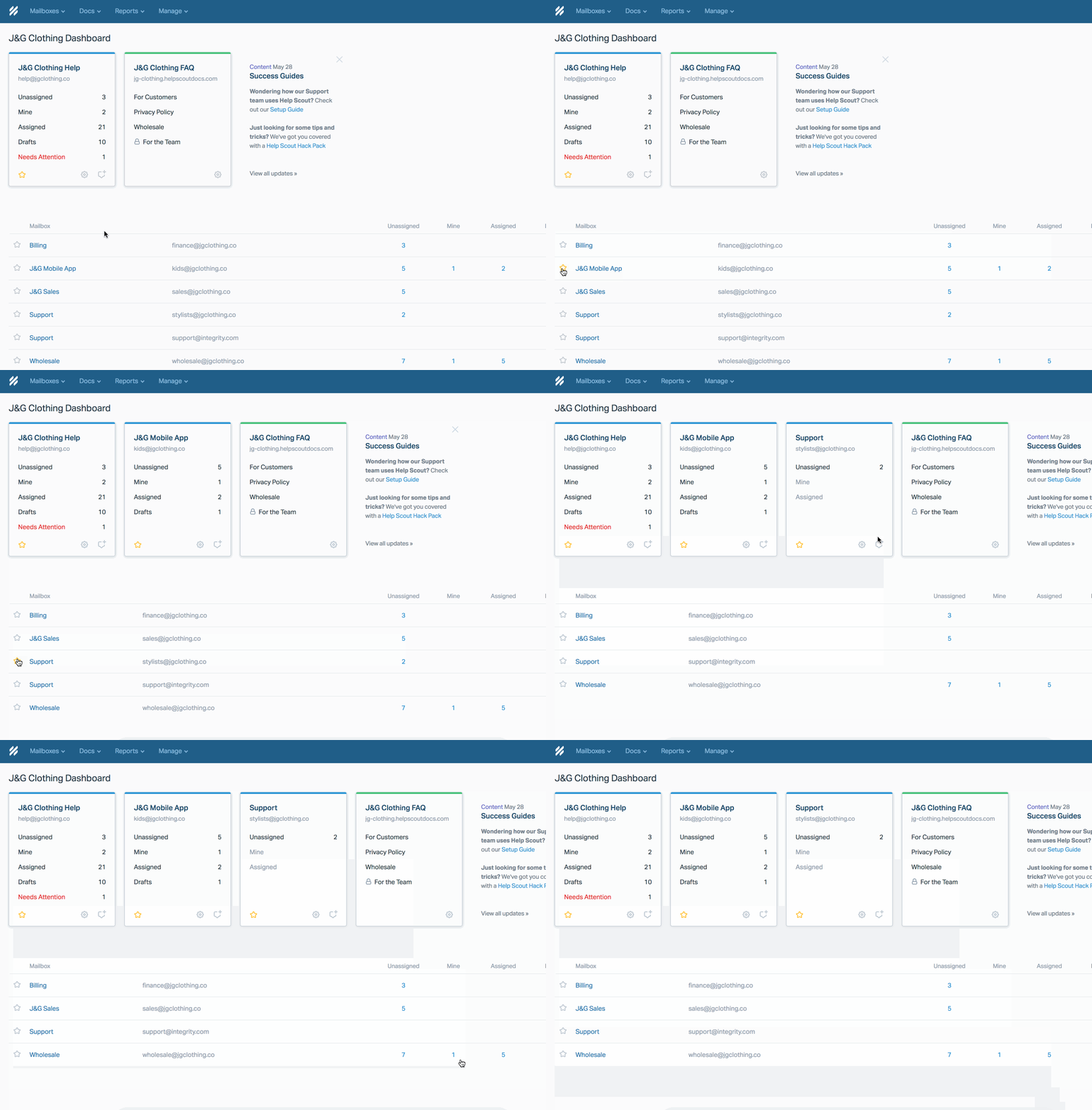
#### 21. Customer name sort
Sort by customer name to quickly identify and merge multiple emails from the same customer. 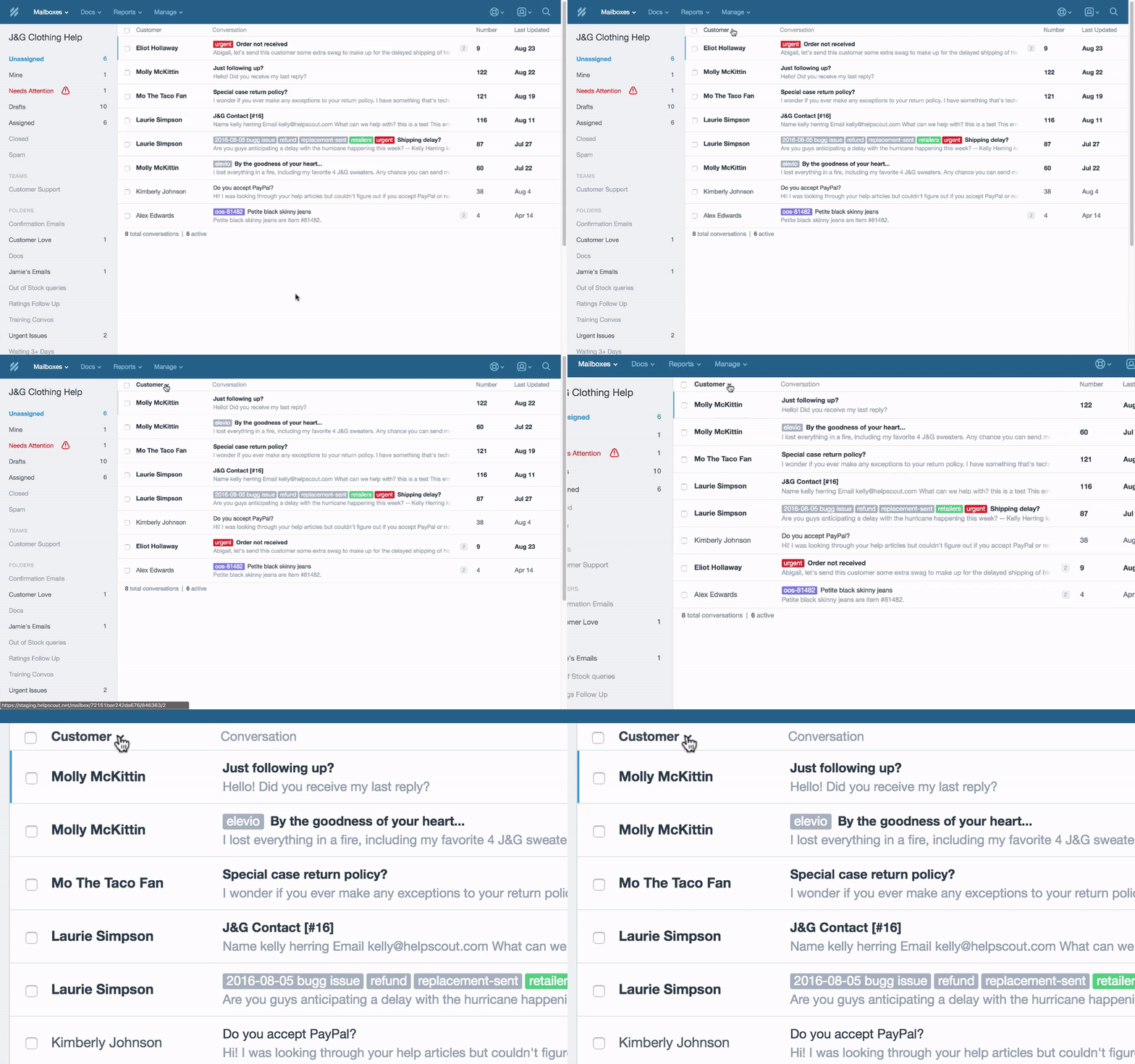
#### 22. Conversation number sort
Tackle oldest conversations first by sorting by conversation number. Flipping on this folder sorting option ensures you serve customers that started a conversation with you first before new, incoming requests, even if the older customer gets a little follow-up happy. 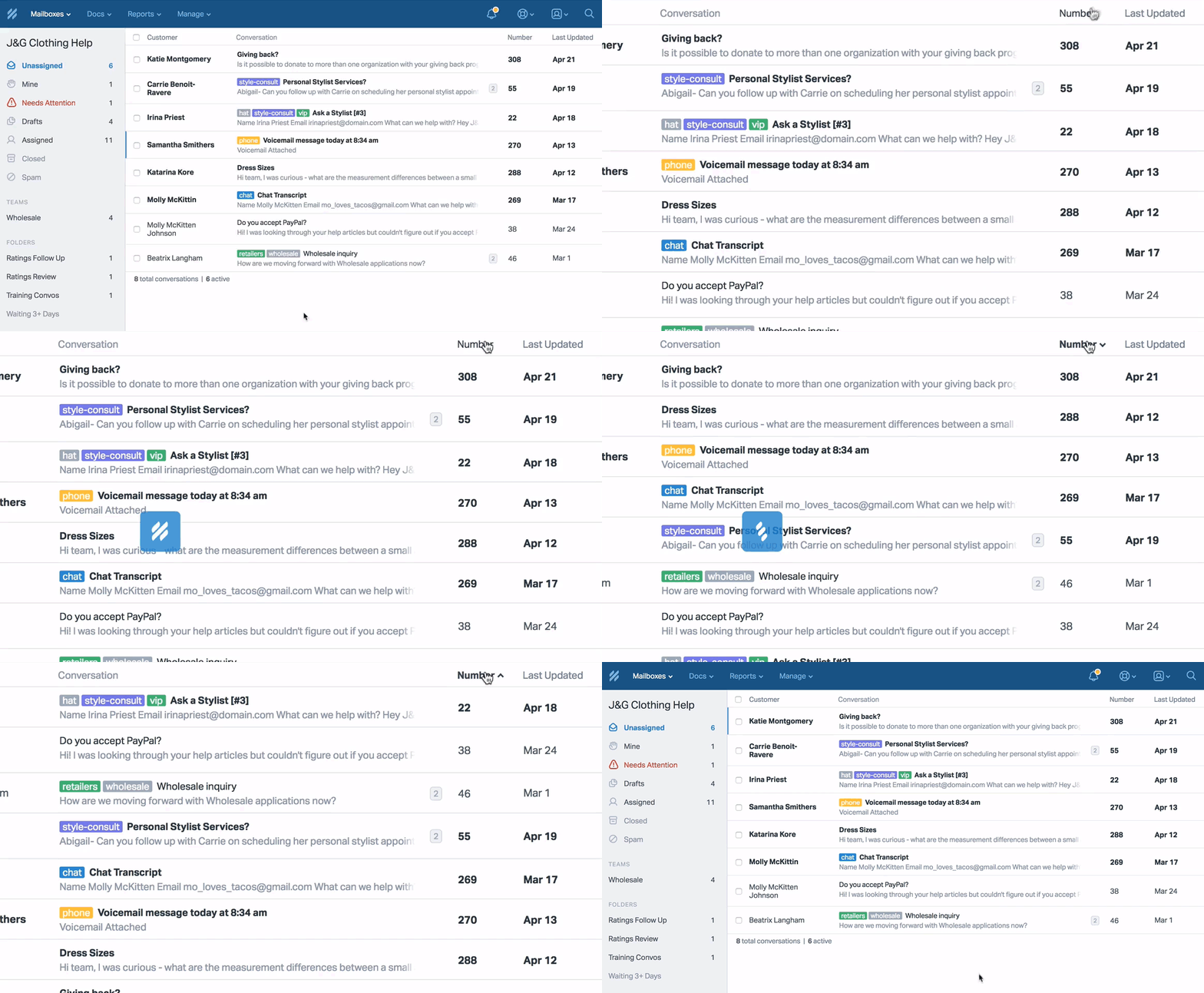
#### 23. Assigned sort
Delegate better with an eye on what your team members have on their plates by sorting from the Assigned column in the Assigned folder. 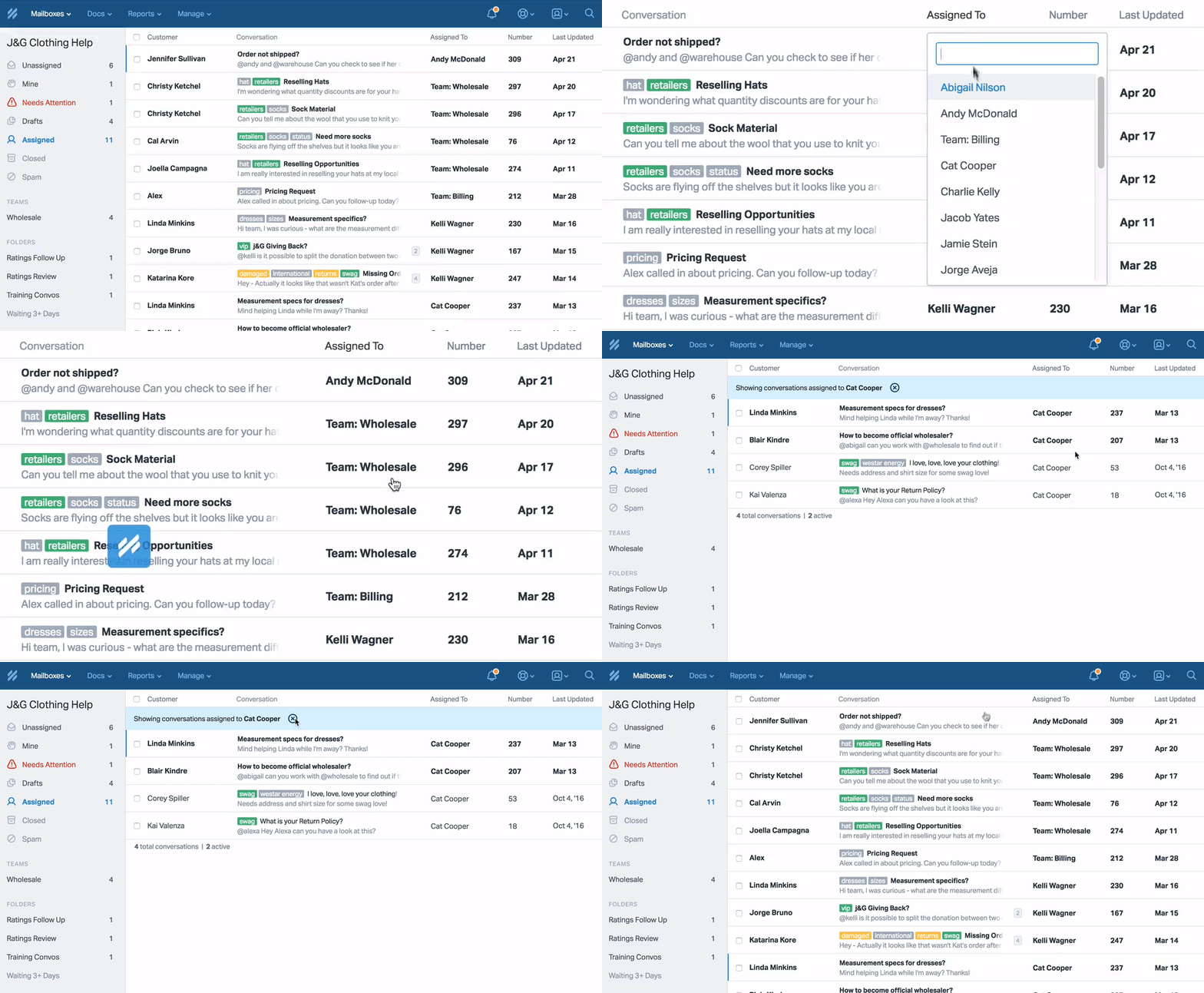
#### 24. Set up Folders for Aliases
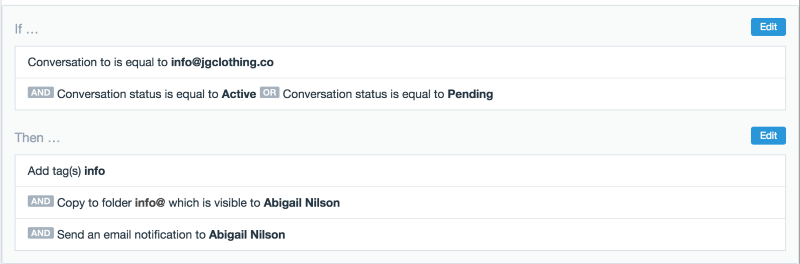
### Docs
#### 25. Search and add Docs in replies
Pop pre-formatted links to Docs articles in your replies by using the handy Docs search bar inside the conversation editor. If you have Docs installed, toggle the Docs search in the dropdown. 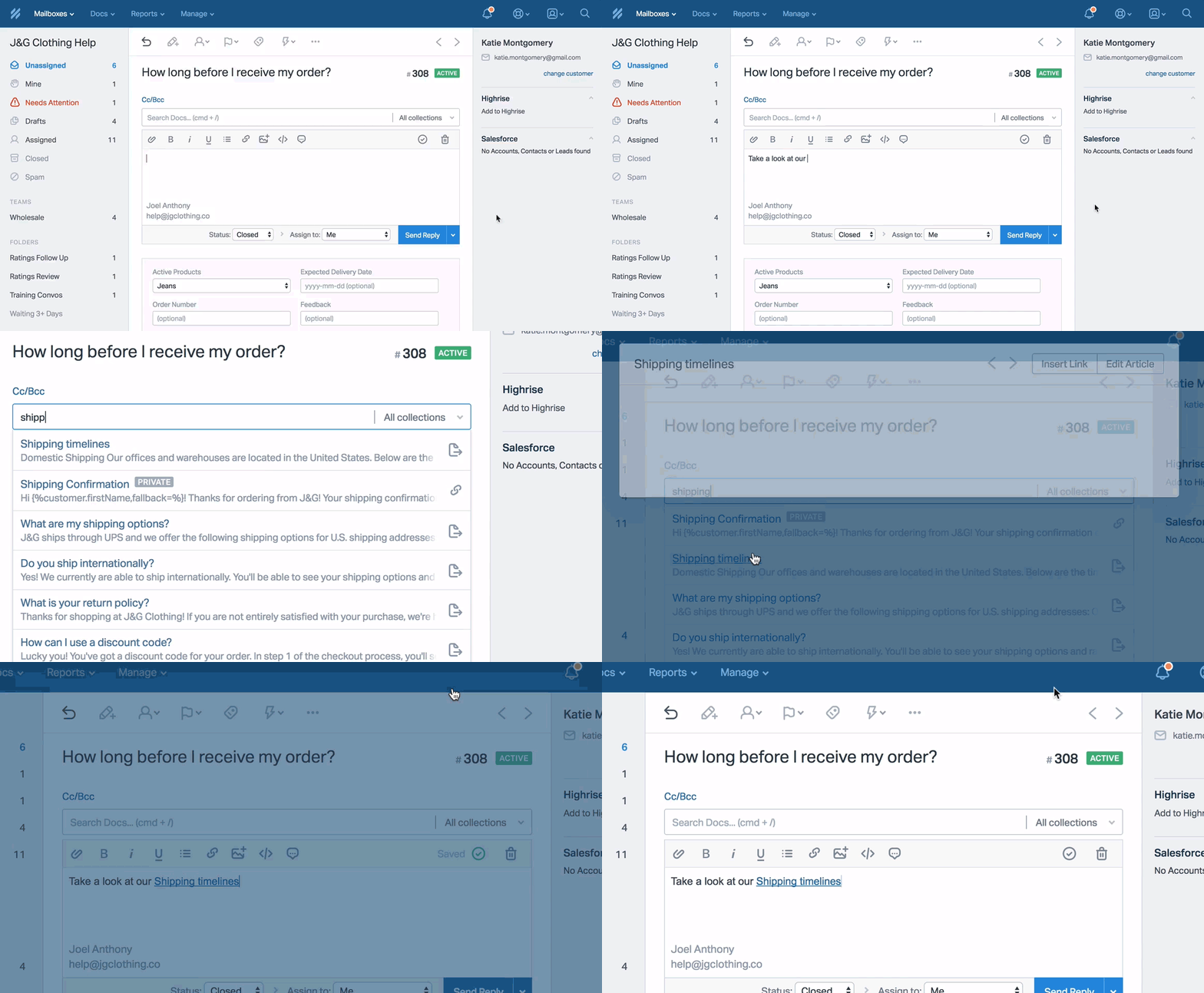
#### 26. Use Internal collections to share Saved Replies across Mailboxes
Use Internal collections for any Saved Replies you need to share across Mailboxes. Since Docs content is accessible from the Docs search bar from any Mailbox, save the reply content in an internal collection and use the Insert Content button to drop it into the Reply Editor just like you would a Saved Reply. The editor will pick up any variables used. 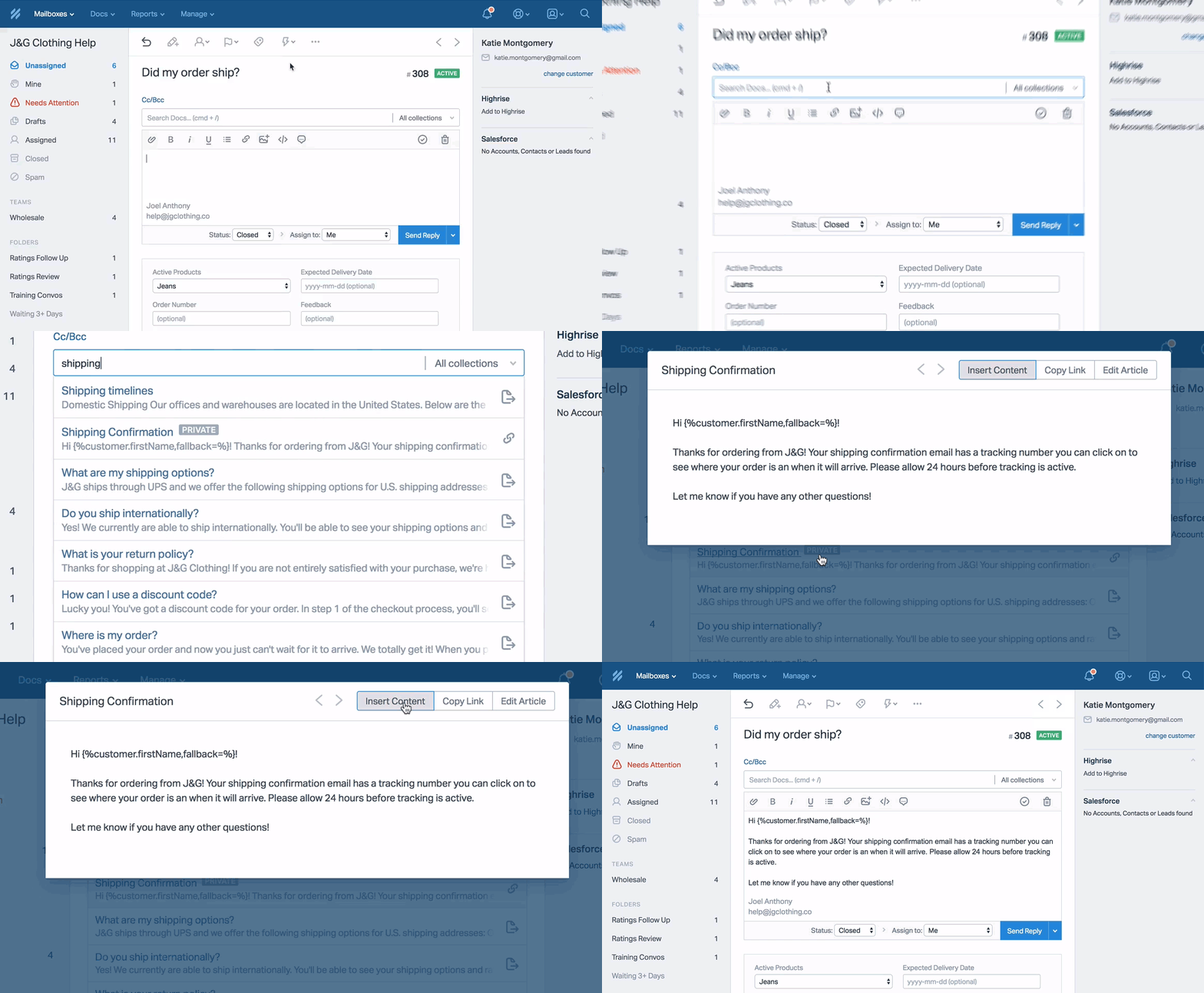
#### 27. Create Custom Navigation Links
Need to link to another web page on your Docs navigation bar, like a privacy policy page or a custom contact form? Just create a Collection for it! Name your Collection the name you want for the navigation link: 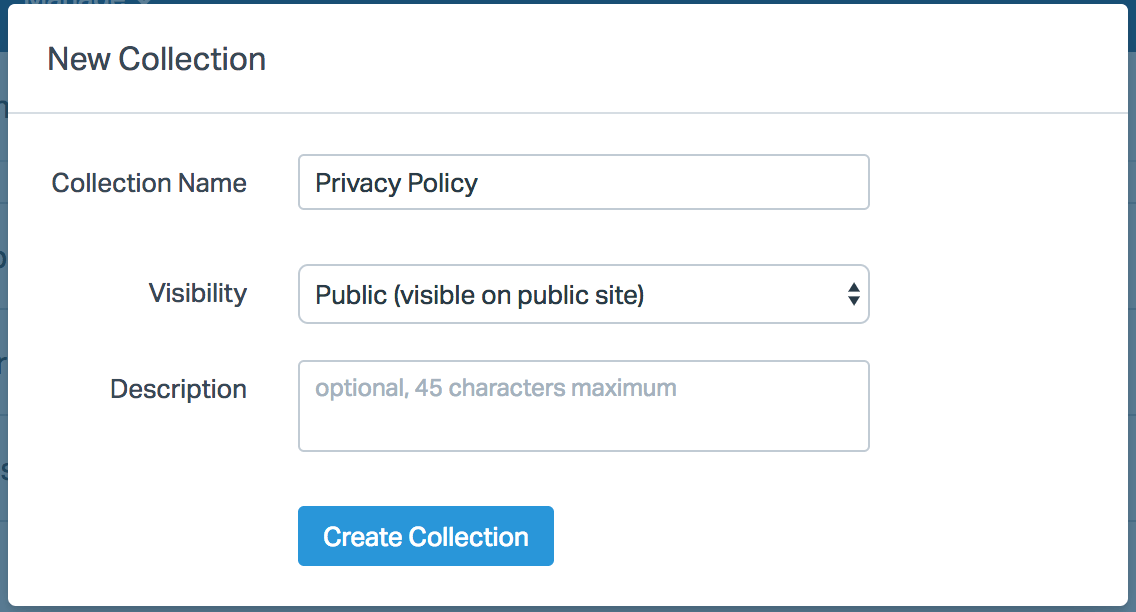 [Docs Redirects](https://5256150.hs-sites.com/knowledge/create-and-manage-docs-redirects) 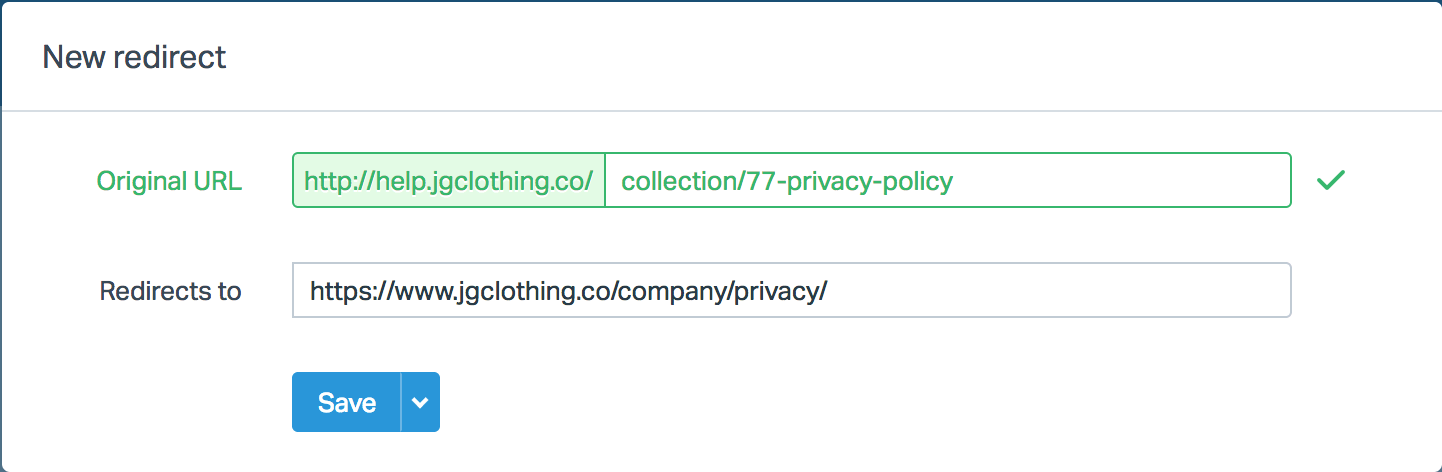 [Restored316 Docs site](https://docs.restored316.com/) *Submit a Ticket*Did this answer your question? Thanks for the feedback There was a problem submitting your feedback. Please try again later.Yes No No results found
- [Docs](https://hsdemo.frodx.com/en/knowledge/docs#main-content)
- [Working with Docs](https://hsdemo.frodx.com/en/knowledge/docs#working-with-docs)
- [Formatting Content](https://hsdemo.frodx.com/en/knowledge/docs#formatting-content)
- [Managing Docs in Help Scout](https://hsdemo.frodx.com/en/knowledge/docs#managing-docs-in-help-scout)
- [Help Desk](https://hsdemo.frodx.com/en/knowledge/help-desk#main-content)
- [Mobile Apps](https://hsdemo.frodx.com/en/knowledge/help-desk#mobile-apps)
- [Getting Started](https://hsdemo.frodx.com/en/knowledge/help-desk#getting-started)
- [Productivity](https://hsdemo.frodx.com/en/knowledge/help-desk#productivity)
- [Mailbox and User Settings](https://hsdemo.frodx.com/en/knowledge/help-desk#mailbox-and-user-settings)
- [Working with Conversations](https://hsdemo.frodx.com/en/knowledge/help-desk#working-with-conversations)
- [Account Management](https://hsdemo.frodx.com/en/knowledge/help-desk#account-management)
- [Integrations](https://hsdemo.frodx.com/en/knowledge/help-desk#integrations)
- [Copying Email to Help Scout](https://hsdemo.frodx.com/en/knowledge/help-desk#copying-email-to-help-scout)
- [Reporting](https://hsdemo.frodx.com/en/knowledge/help-desk#reporting)
- [Sample Contact Page](https://hsdemo.frodx.com/sample-contact)
- [Sample About Page](https://hsdemo.frodx.com/sample-about)
- [Default HubSpot Blog](https://hsdemo.frodx.com/biglytics-blog)
[.png?width=550&height=171&name=frodx-logo-new%20(1).png "FrodX")](https://en.frodx.com/)
[mailto:email@email.com](mailto:email@email.com)
Copyright © 2026, GateHub Ltd