.png?width=550&height=171&name=frodx-logo-new%20(1).png)
Email notifications can keep you up-to-date with what's happening in Help Scout, even when you're not actively logged in to the app! This article explains how our email notifications work and what you can do with them right from your email.
In this article
Overview
Help Scout sends an email notification to you when certain events take place on a conversation, based on your notification settings. These notifications are sent to the email address you use to log in to Help Scout. You can control the notifications you receive in your profile settings — see Manage Help Scout Notifications for more details on the options available.
Reply to an email notification to take action on the conversation without having to log in to Help Scout. You can add a reply to the conversation right from your email — this will add a reply in Help Scout and send that reply to the customer from your Help Scout mailbox — or add a note for only your team to see in Help Scout. You can also change the assignment, status, add tags, and more, all right from your email.
Note: Help Scout email notifications are unique to the User and the conversation. Only the person who received the notification can reply to it. In other words, you can't forward your email notification to another User or a third-party for them to take action on.
Work With Email Notifications
When you receive an email notification, you just need to reply to it like any other email in your inbox to take action on that conversation in Help Scout.
But heads up: What action you take by default can change depending on what kind of notification it is. You'll want to pay close attention to what kind of notification you're working with to make sure you're reaching the audience you want to.
The Anatomy of an Email Notification
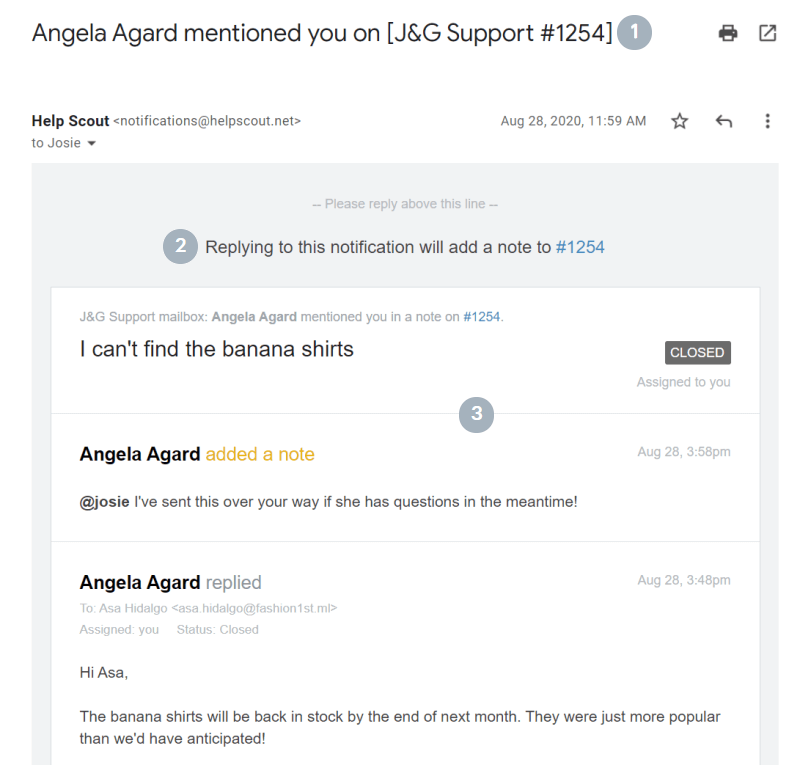
First up, let's break down what the email notifications look like and what information you'll have there. Below is an email notification that was sent to Josie when Angela mentioned her on a conversation.
 adding a reply to the customer

Reply to an Email Notification
Reply just as you would to any email you've received. It's really that easy!
Make sure you're taking note of which action you're doing by default, as mentioned in item #2 above, and then check out the email commands for the full list of actions you can take in a reply to a notification.
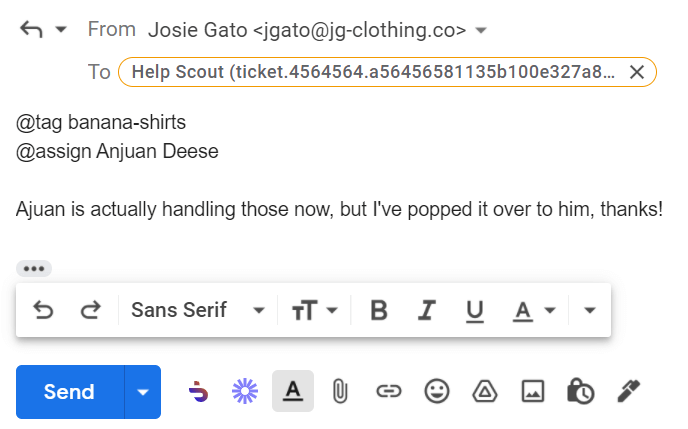
Email Commands for Notifications
Important Notes:
- Make sure to note what action your reply will take — replies to some notifications will create a note, replies to other notifications will send a reply to the customer. Every notification will have a line that tells you what your reply will do. See the breakdown of a notification above for help there.
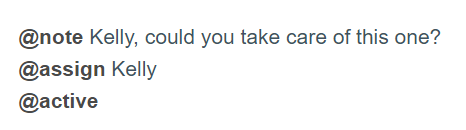
- When replying to an email notification that creates a reply to the customer, any text entered and sent will be visible to the customer. Use the @note command to add a note, which is visible to your team members only. It's not possible to reply to the customer and add a note at the same time — if you need to do both, you'll need to reply to the notification 2 separate times, one with a customer reply, one with a note.
- When using @note with other commands, the content of the note must be entered immediately after @note, with no other commands in between. Example:
- The only email address that should be in the email from your email client when you reply to a notification or manually forward an email is the Help Scout address; do not include any CC or BCC addresses on the email reply itself. Use the @cc or @bcc commands to add other email addresses to the conversation in Help Scout.
Tables can't be imported directly. Please insert an image of your table which can be found here.
Command ValuesDid this answer your question? Thanks for the feedback There was a problem submitting your feedback. Please try again later.Yes No No results found