---
title: Use @mentions in Notes
description: The @mentions feature allows you to ping another User or Team in a note on a conversation and send them a notification without having to assign it to them. This article is all about how @mentions work
---
[Skip to content](https://hsdemo.frodx.com/en/knowledge/use-mentions-in-notes#main-content)
English
Show submenu for translations
.png?width=550&height=171&name=frodx-logo-new%20(1).png)
- [Sample Contact Page](https://hsdemo.frodx.com/sample-contact)
- [Sample About Page](https://hsdemo.frodx.com/sample-about)
- [Default HubSpot Blog](https://hsdemo.frodx.com/biglytics-blog)
Open main navigation
Close main navigation
- [Sample Contact Page](https://hsdemo.frodx.com/sample-contact)
- [Sample About Page](https://hsdemo.frodx.com/sample-about)
- [Default HubSpot Blog](https://hsdemo.frodx.com/biglytics-blog)
- English
Show submenu for translations
- Contact us
Contact us
How can we help you?
- There are no suggestions because the search field is empty.
1. [Help Center](https://hsdemo.frodx.com/en/knowledge)
2. [Help Desk](https://hsdemo.frodx.com/en/knowledge/help-desk)
3. [Working with Conversations](https://hsdemo.frodx.com/en/knowledge/help-desk#working-with-conversations)
# Use @mentions in Notes
The @mentions feature allows you to ping another User or Team in a note on a conversation and send them a notification without having to assign it to them. This article is all about how @mentions work.
#### In this article
- [How @mentions Work](https://hsdemo.frodx.com/en/knowledge/use-mentions-in-notes#mention)
- [@mention Notifications](https://hsdemo.frodx.com/en/knowledge/use-mentions-in-notes#notification)
### How @mentions Work
Type the @ symbol in a note and you'll see an inline dropdown with a list of Users and Teams that have access to the Mailbox you're working in. The list of names will filter as you type more letters. Click to select a User at any time, or use the arrow keys and Tab to navigate with the keyboard.
Mentions will *only* work within the note editor specifically. To mention a User or team:
**Note**  ***@*** 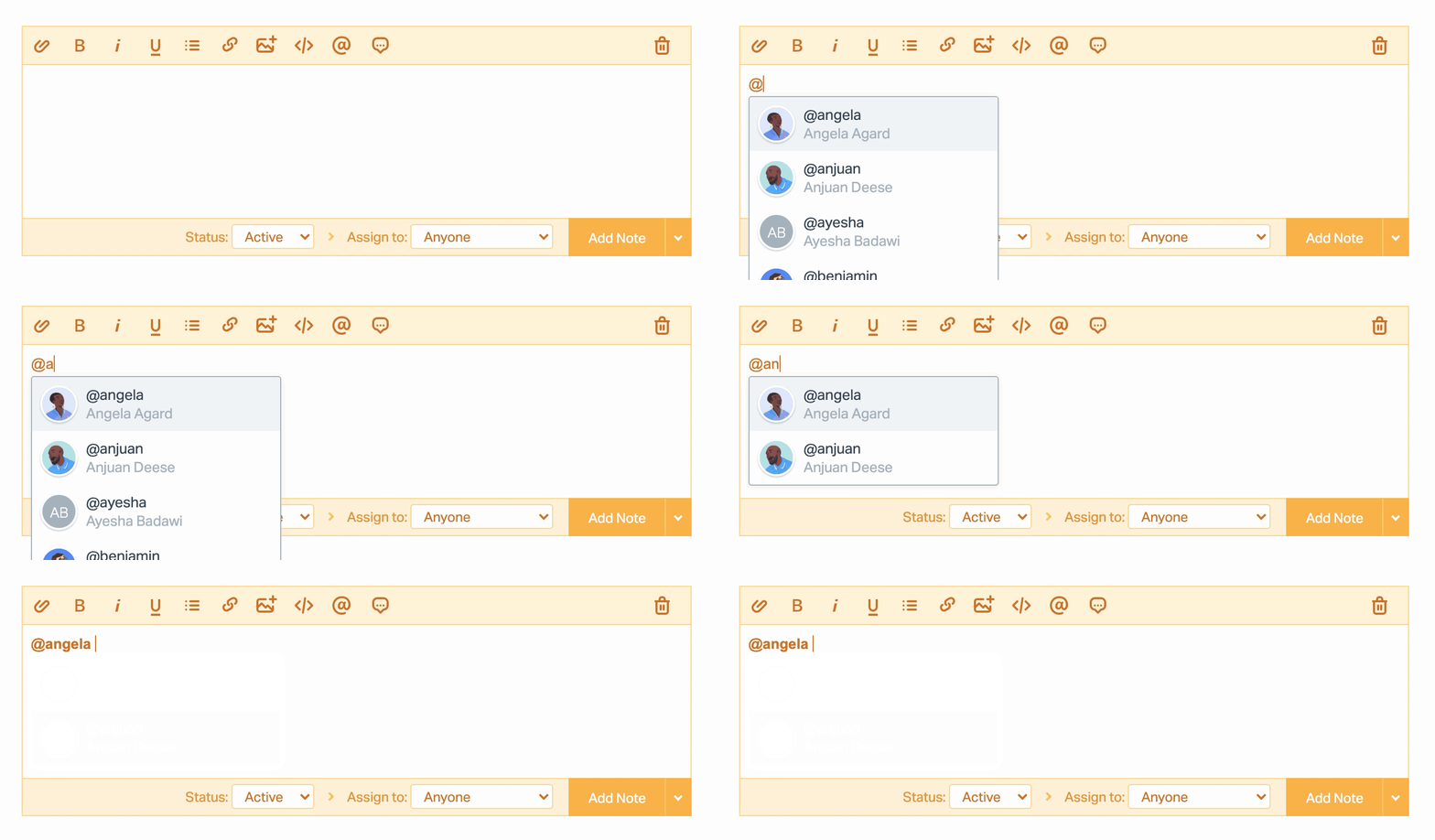 **Add Note** 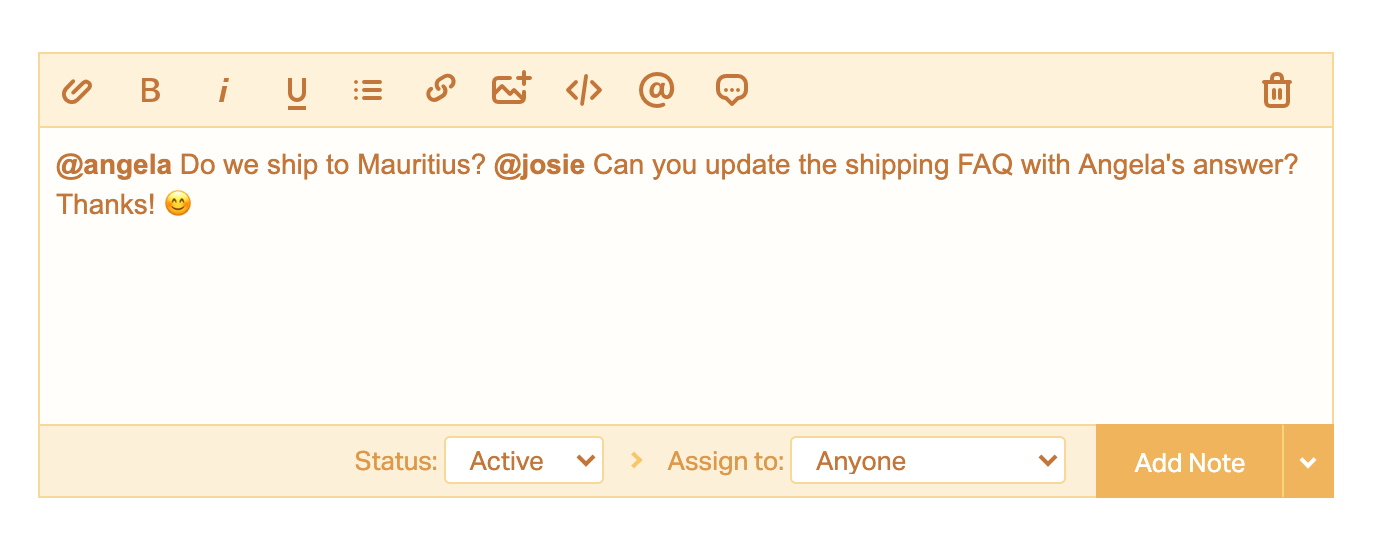 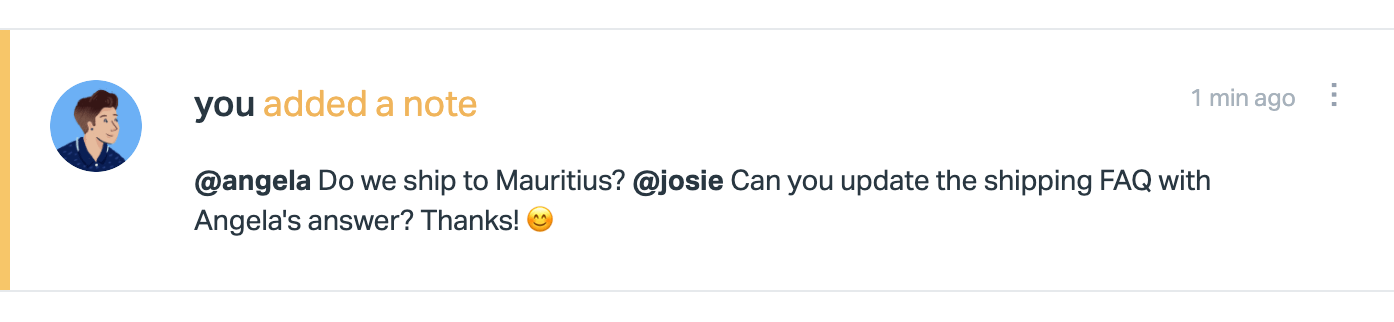
### @mention Notifications
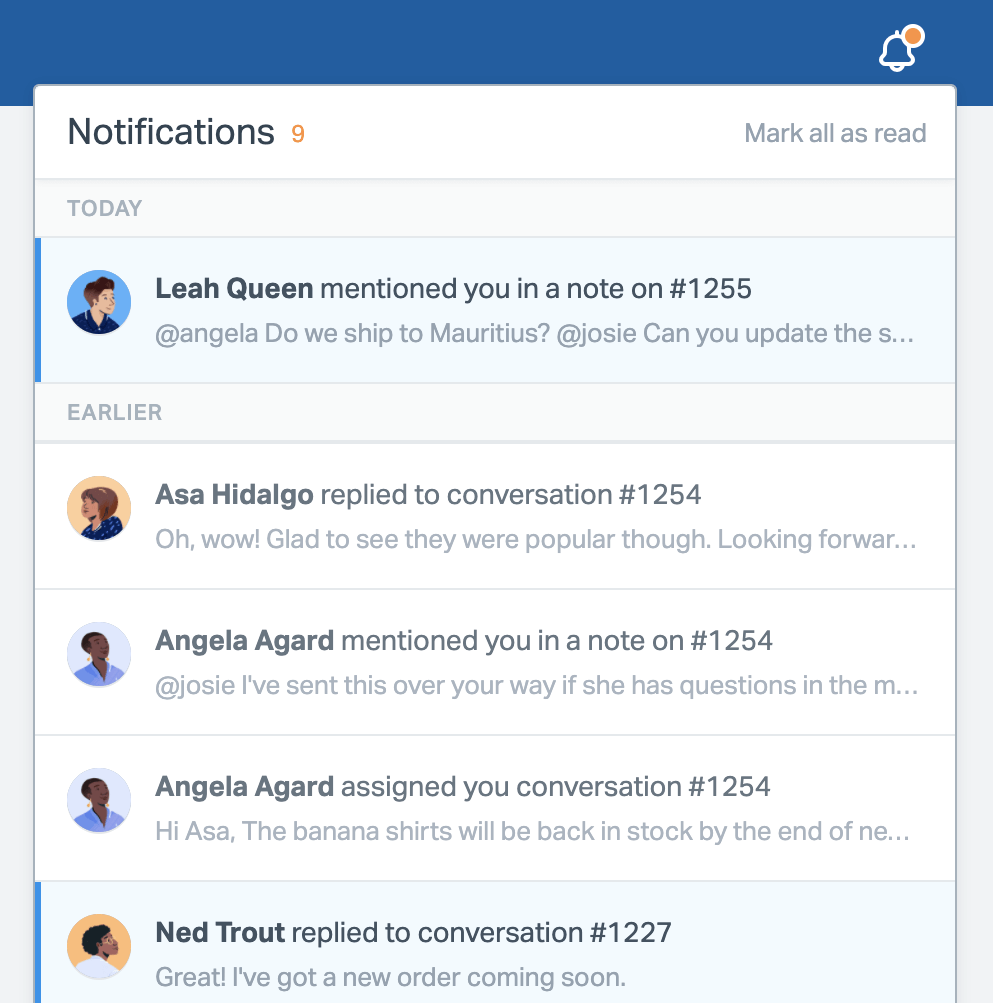
A notification will always show in the [Notification Station](https://docs.helpscout.com/article/696-manage-help-scout-notifications#station) when you're @mentioned in a note. You may also elect to receive an email, browser, or mobile notification for @mentions in your [Notification Settings](https://5256150.hs-sites.com/knowledge/manage-help-scout-notifications-1).
#### In-app notifications
Check the [Notification Station](https://docs.helpscout.com/article/696-manage-help-scout-notifications#station) to keep tabs on all of your @mentions, along with other updates.
#### Email notifications
You'll also receive an email notification if you have enabled that option in your notification settings.
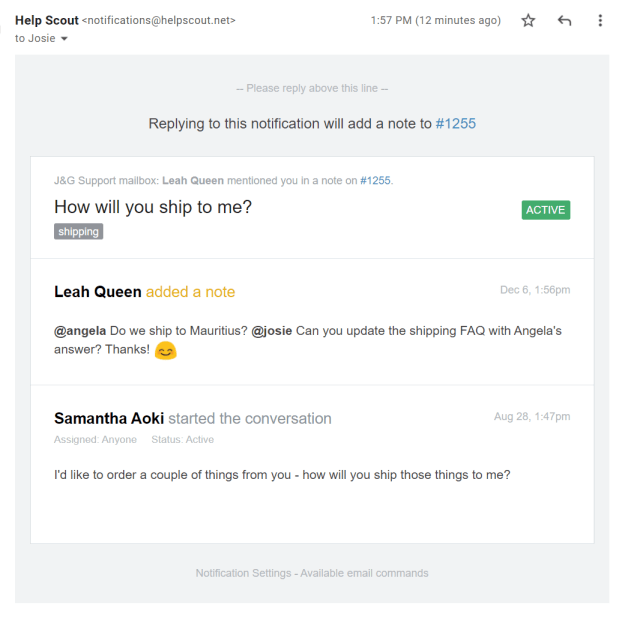
You can reply to the notification email to reply to that note, or log in to Help Scout to reply.
Did this answer your question? Thanks for the feedback There was a problem submitting your feedback. Please try again later.Yes No No results found
- [Docs](https://hsdemo.frodx.com/en/knowledge/docs#main-content)
- [Working with Docs](https://hsdemo.frodx.com/en/knowledge/docs#working-with-docs)
- [Formatting Content](https://hsdemo.frodx.com/en/knowledge/docs#formatting-content)
- [Managing Docs in Help Scout](https://hsdemo.frodx.com/en/knowledge/docs#managing-docs-in-help-scout)
- [Help Desk](https://hsdemo.frodx.com/en/knowledge/help-desk#main-content)
- [Mobile Apps](https://hsdemo.frodx.com/en/knowledge/help-desk#mobile-apps)
- [Getting Started](https://hsdemo.frodx.com/en/knowledge/help-desk#getting-started)
- [Productivity](https://hsdemo.frodx.com/en/knowledge/help-desk#productivity)
- [Mailbox and User Settings](https://hsdemo.frodx.com/en/knowledge/help-desk#mailbox-and-user-settings)
- [Working with Conversations](https://hsdemo.frodx.com/en/knowledge/help-desk#working-with-conversations)
- [Account Management](https://hsdemo.frodx.com/en/knowledge/help-desk#account-management)
- [Integrations](https://hsdemo.frodx.com/en/knowledge/help-desk#integrations)
- [Copying Email to Help Scout](https://hsdemo.frodx.com/en/knowledge/help-desk#copying-email-to-help-scout)
- [Reporting](https://hsdemo.frodx.com/en/knowledge/help-desk#reporting)
- [Sample Contact Page](https://hsdemo.frodx.com/sample-contact)
- [Sample About Page](https://hsdemo.frodx.com/sample-about)
- [Default HubSpot Blog](https://hsdemo.frodx.com/biglytics-blog)
[.png?width=550&height=171&name=frodx-logo-new%20(1).png "FrodX")](https://en.frodx.com/)
[mailto:email@email.com](mailto:email@email.com)
Copyright © 2026, GateHub Ltd